Why Is My PDF File So Large?
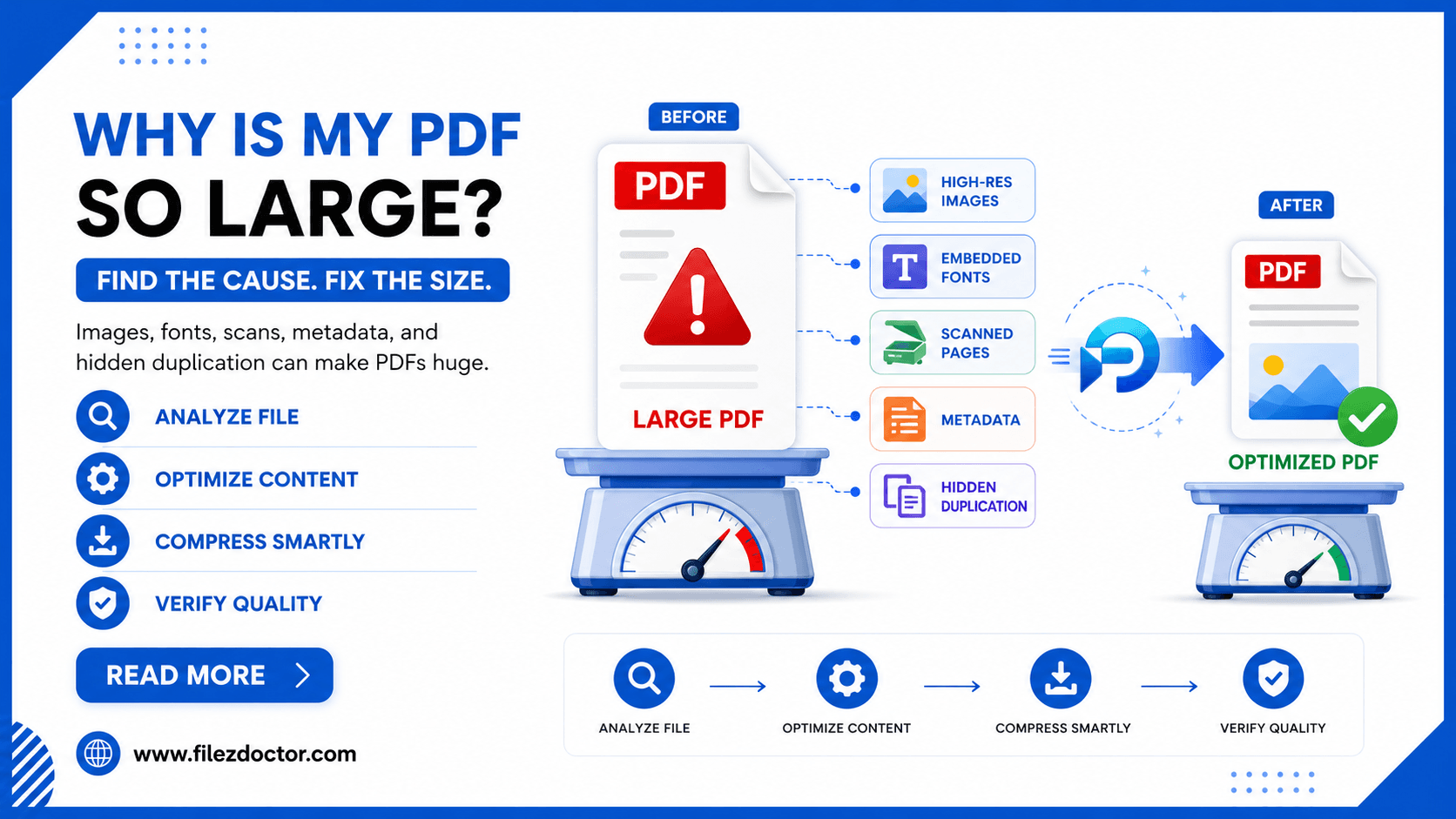
“Why is this PDF 50 MB when it only has a few pages?” is a question many people ask after uploading a document and getting slow loading times, rejected file sizes, or annoying download delays. The cause is usually not one thing. It is commonly a combination of images, embedded resources, and export settings.
If you suspect your file is bloated, this article helps you diagnose the most frequent culprits and choose a compression strategy that reduces size without ruining readability. And when you are ready to optimize, try the Compress PDF tool.
The quick reality check
PDF size is driven by what the PDF must store. A PDF that is mostly text can be small. A PDF that stores large raster images (like screenshots or scans) can balloon quickly.
Even if a PDF looks “simple” to you, the underlying content might include:
- Full-resolution images
- Multiple font copies
- Repeated objects from layered exports
- High-resolution scans
- Unremoved metadata
Common reasons PDFs become large
1) High-resolution screenshots
Screenshots often capture more pixels than you need. For example, a phone screenshot might be 3000 pixels wide and saved at the original scale. If you embed that image in a PDF, the file size reflects that full resolution.
This is common when people:
- Export screenshots to PDF after taking them
- Copy/paste images into a document and export without downsampling
2) Scanned pages stored as images
Scans usually contain bitmaps. Even a single scanned page can take several megabytes depending on resolution and compression. A 10-page scan at high DPI can become very large quickly.
3) Embedded fonts and duplicated font subsets
PDFs store font information so the document looks right. Sometimes fonts are embedded more than you expect, or multiple font subsets are included. This can add size even when the document text is not “long.”
4) Metadata and authoring history
Many exports include creator names, software trails, timestamps, and other metadata. Metadata rarely makes a file enormous by itself, but it can add up across complex documents.
5) Layers, form fields, and hidden objects
Some PDF creators preserve layers (for example, visibility toggles), form data, or annotation objects. These features are useful, but they increase file complexity.
6) Re-compression mistakes and “nested” conversions
If you repeatedly export to PDF from different tools, each export may re-encode images or rebuild the document structure. The result can be incremental quality loss and increasing size.
Diagnose without guessing: a practical triage
You do not always need a deep forensic tool. You can do a quick triage that narrows the cause fast.
Step 1: Identify whether it is text-based or image-heavy
Ask:
- Can you select the text normally?
- Do you zoom in and see crisp letters and vector-like edges?
If text selection fails, or letters look like they are part of an image, your PDF likely contains scan images, which are a major size driver.
Step 2: Check for “image pages”
Look for pages that contain:
- Screenshots
- Photos
- Graphs exported as raster images
- Captured forms
- Full-page graphics
If only some pages are huge, optimize selectively rather than applying one aggressive setting to the entire file.
Step 3: Compare before/after on a sample page
If you can, compress a small subset:
- First page only
- One middle page with the most detail
Then compare:
- Does text stay crisp?
- Do images remain readable?
This prevents you from accidentally damaging the file while trying to meet a size limit.
How to reduce size without losing quality
The best strategy depends on the PDF composition, but the following approach works for many users:
Step 1: Target images first
If the PDF includes embedded images, you usually get the biggest gains by compressing images carefully:
- Downsample only as much as needed
- Use a quality setting that keeps text readable
- Avoid repeated re-encoding cycles
Step 2: Preserve vectors and text where possible
If your PDF stores text as vectors, preserve it. You want the tool to keep text crisp at any zoom level.
Step 3: Remove unnecessary extras
When available, choose options to:
- strip unused objects
- remove redundant metadata
- optimize for file transfer
Do not strip essential features if you rely on:
- annotations
- form fields
- screen-reader tags
Step 4: Validate the important pages
After compression:
- zoom in on small fonts
- review diagrams and lines
- open the PDF in the same type of viewer you will submit with
If the PDF will be printed, confirm print preview or print a page to spot loss of detail early.
Special case: scanned PDFs
Scans typically require a two-step approach:
- Improve or optimize the scan images.
- If you need editable or searchable text, apply OCR after (or as part of) optimization.
Compressing scanned images reduces size, but it does not magically create true editable text. OCR is the part that produces text you can select and search.
Where FilezDoctor fits in
When you want a straightforward way to shrink a PDF without constantly tweaking settings, use the Compress PDF tool. It is designed for common document uploads where readability matters more than extreme size reduction.
FAQ
Is a large PDF always a problem?
Not always. If it loads quickly and fits submission limits, it may be fine. But large files can slow down uploads and cause portals to reject submissions.
Will compression make my text blurry?
It can, if the tool downsample or re-encodes images too aggressively. The solution is to use a quality-targeted compression strategy and validate by zooming in.
Why is my PDF large even though it is mostly text?
Possible causes include embedded fonts, duplicated objects, and invisible layers. Also, pasted images inside the document can be embedded at high resolution even if the page looks mostly text.
What is the biggest size driver: images or fonts?
In most cases, images (screenshots or scans) are the biggest drivers. Fonts matter too, but embedded font data usually contributes less than high-resolution raster content.
Final thoughts
Large PDFs usually come from embedded images, scans, duplicated resources, or repeated export conversions. Once you recognize the likely cause, the fix becomes much simpler: compress images carefully, preserve vectors/text when possible, and validate the pages that matter. That is how you reduce size without turning your document into a blurry copy.
Ready to optimize your PDFs?
Experience the world's fastest PDF tools today.