Secure File Sharing Without Email Attachments
Email attachments are convenient, but they create multiple risk points: accidental forwarding, lost attachments, outdated versions, and inbox exposure when sensitive files are attached without access control. A safer approach is link-based sharing, where you send a controlled link rather than an attachment.
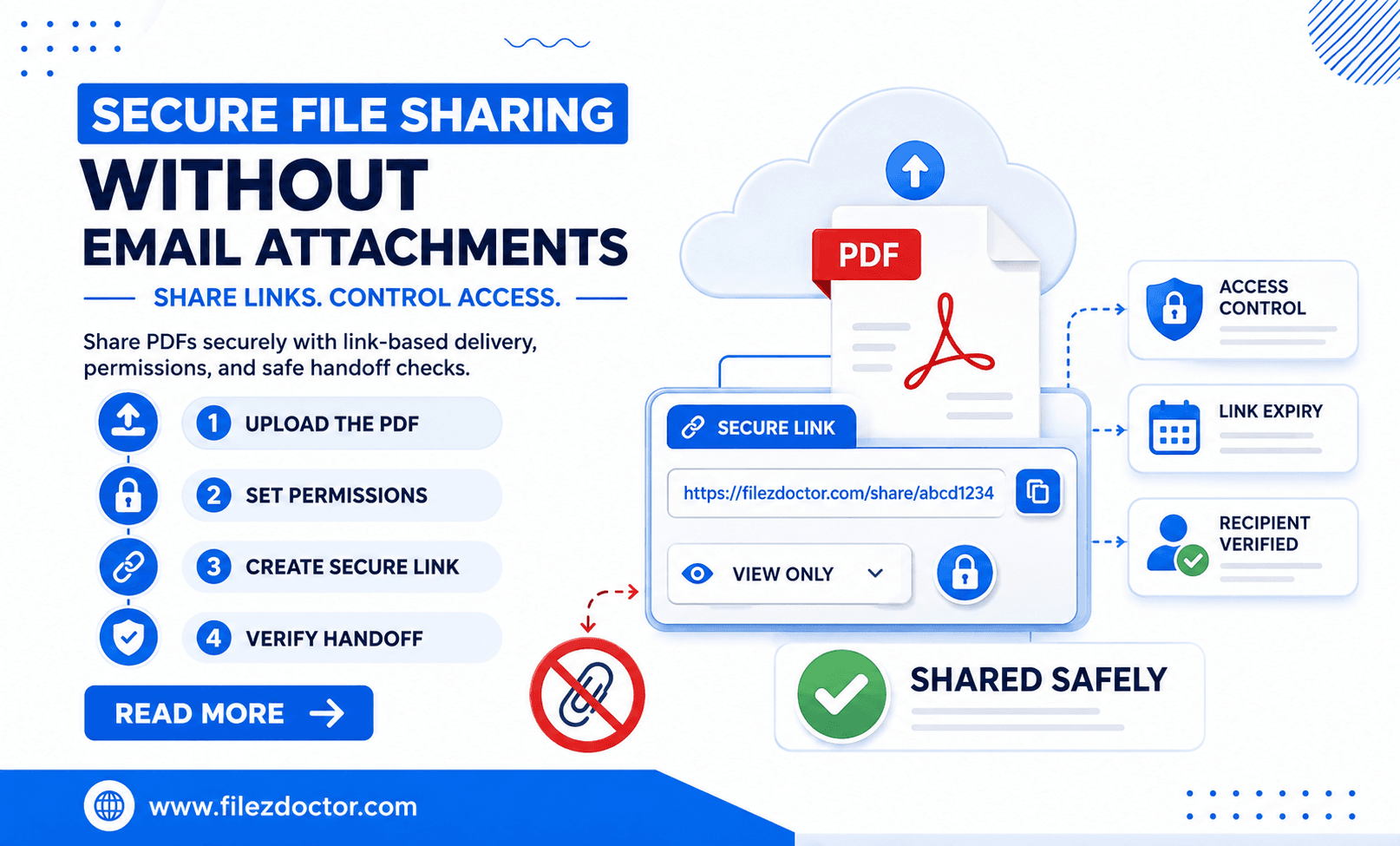
This guide shows a practical way to share files securely without relying on email attachments. When you are ready to share content through FilezDoctor, use the share page tool to deliver the file in a controlled, link-based format.
Why link-based sharing is often safer
Link-based sharing can improve security because it separates:
- where the file is stored
- who can access it
- how the recipient receives the access method
Instead of sending a copy of the document to multiple inboxes (and losing track of who has what), you provide a way to download a file that can be controlled by access settings.
Plan before you share
Before you upload and send the link, decide what the recipient needs:
- Must they download and review?
- Do they need to print?
- Should they be able to copy text?
- Is the file confidential, or only moderately sensitive?
If you can decide these up front, you can choose the right permission approach and reduce friction for the recipient.
Recommended workflow for secure sharing
Step 1: Prepare the file
Make sure you are sharing the correct file version. For sensitive documents, consider:
- removing drafts and unrelated pages
- applying password protection if the recipient needs it (password shared separately)
- compressing a huge PDF so it uploads quickly and downloads reliably
If you already know your file includes scanned pages, keep the scan quality clear so the recipient does not have trouble reading it.
Step 2: Upload using a secure share flow
Open the FilezDoctor share workflow and upload the file using the share page tool. In most link-based systems, you will then set access options.
Step 3: Configure access settings
Exact options vary by platform, but common controls include:
- who can access (anyone with the link vs specific recipients)
- expiration time (how long the link stays valid)
- download behavior (downloadable vs view-only)
For sensitive documents, prefer more restrictive options when available. If you can specify recipients and set expiration, do it.
Step 4: Send the link through a safe channel
When sharing the link:
- do not post it publicly
- avoid sending the link in a place where unintended people can view it
If you used password protection, send the password separately. The key is that possession of the link alone should not be enough to access the content.
Step 5: Confirm access for the recipient
After you send the link, you can confirm success by:
- checking that the link loads for the intended recipient (without sharing it widely)
- verifying the file downloads correctly
- requesting confirmation that the file looks right (especially page order and readability)
If the portal requires a specific file format, make sure the recipient has what they need.
Best practices to avoid common sharing mistakes
Mistake 1: Sharing an “evergreen” link
If a link never expires, it may remain accessible long after you intended. For sensitive files, set an expiration window so access ends automatically.
Mistake 2: Sending access details together
Never include both the link and password in the same message if the document is highly sensitive. Separate channels reduce the chance of accidental exposure.
Mistake 3: Forgetting about versions
Many security problems happen when someone downloads an old version. Use a consistent naming scheme and confirm the final file is the one you share.
Mistake 4: Not testing readability
Before sending, open the file yourself (or preview it) and confirm it meets expectations:
- correct page order
- readable text
- no missing pages or broken images
When you should still use a PDF password
Link-based sharing and password protection are complementary. Use password protection when:
- the document contains sensitive personal data
- your sharing channel is not fully trusted
- you expect the file might be forwarded
But remember: passwords are access controls, not perfect “content leak prevention.” Recipients can still screenshot or forward content after access.
Sharing text or small documents instead of large attachments
Sometimes you do not even need to share a file. If the content is small (a message, a summary, or instructions), you may share text content directly in the same link-based workflow. That reduces file transfer overhead and keeps sharing clean.
If your system supports sharing “text or file” in the same flow, it can simplify your process for mixed requests (for example, instructions plus a PDF).
FAQ
Can anyone access the file if they have the link?
That depends on how the link is configured. The safest approach is to restrict access when possible (for example, specific recipients) and set expiration.
Should I use password protection with link sharing?
Often yes for highly sensitive documents. It adds an extra step so a link alone is not sufficient.
How do I revoke access after sending?
Many systems allow expiring or disabling a link. If your workflow does not include revocation, set a short expiration time instead.
What is the biggest advantage over emailing attachments?
Most importantly, you reduce uncontrolled copies and improve access control. You also avoid exposing sensitive files to inboxes and forwarding paths.
Final thoughts
Secure file sharing is less about relying on email attachments and more about controlling access. By using link-based sharing through FilezDoctor’s share page tool, setting appropriate access controls, and sending access details safely, you can share documents with less risk and less confusion.
Ready to optimize your PDFs?
Experience the world's fastest PDF tools today.