Removing Sensitive Metadata From PDFs: A Privacy Checklist That Actually Works
When you share a PDF, you’re not only sharing pages. The file can include metadata and hidden fields that reveal more than you intended: the author name, software used to create the document, timestamps, document IDs, or embedded revision history.
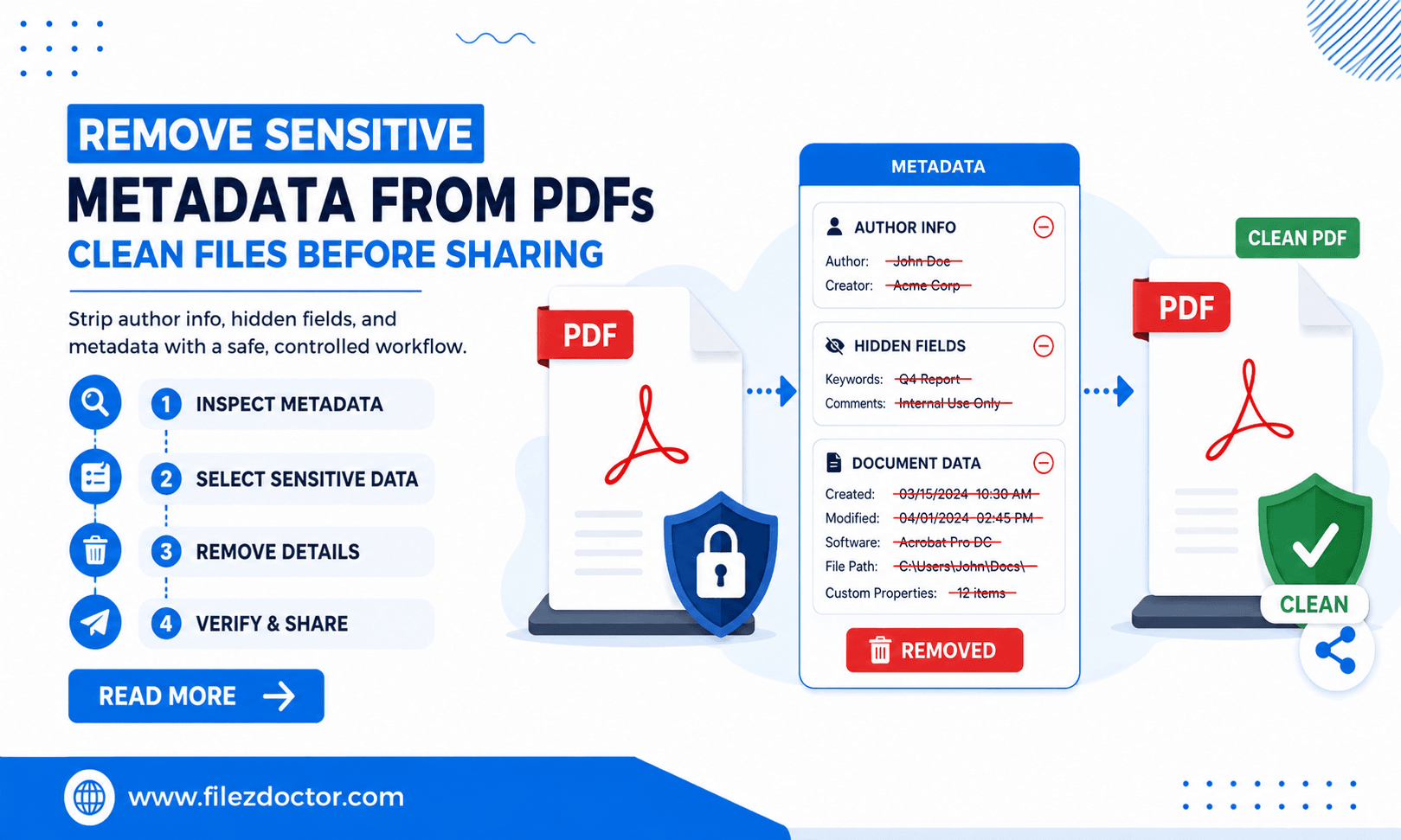
If you want to reduce the chances of leaking sensitive details, use Remove Metadata from FilezDoctor to sanitize your PDF before sending it externally.
What “metadata” can include in a PDF
Metadata is information stored alongside the visual content. In PDFs, this can include:
Document properties (visible indirectly)
Common fields include author, title, subject, creation/modification dates, and producer information.
XMP and other metadata packets
PDFs can store richer descriptive data in XMP format, sometimes including keywords or internal tags.
Embedded identifiers
Some files contain unique IDs that can help track versions or link documents across systems.
Comments and hidden editing information
Depending on how a PDF was created, it may contain annotations, comments, or structural notes.
Metadata in form fields
If the PDF includes forms, it may include details about field origins or internal naming.
When you should remove metadata
Consider removing metadata when:
- you send documents outside your organization,
- you publish screenshots of internal reports,
- you attach PDFs to emails and want to reduce identity leakage,
- you share contracts or invoices that should not reveal internal authorship details,
- the document might include internal tracking or revision references.
If the PDF is public and non-sensitive, metadata removal may be optional. For sensitive work, it’s a strong safety habit.
Step-by-step: sanitize a PDF before sharing
Step 1: Work from the right version
Make sure you’re sanitizing the final PDF that you plan to send. If you sanitize early and then edit later, new metadata could be added back.
Step 2: Decide what to keep
Metadata removal can be broad. Before you remove everything, decide what must remain for compatibility:
- If a document relies on metadata for a specific workflow, verify that removal won’t break it.
- If you’re archiving, keep a controlled copy for compliance and auditing.
For most external sharing, removing author and creation details is safe and useful.
Step 3: Use FilezDoctor metadata removal
Use Remove Metadata:
- Upload the PDF.
- Choose the metadata categories to remove if options are available.
- Download the cleaned PDF.
Step 4: Verify the cleaned output
Open the resulting PDF and confirm:
- it still renders exactly as expected,
- there are no missing critical elements,
- it’s safe to share (for example, no obvious author info is shown in properties).
If you still see surprising information, you may have additional metadata categories or embedded items to remove.
Common pitfalls and how to avoid them
Pitfall 1: Removing metadata in a workflow that requires it
Some compliance workflows or signature systems may rely on specific metadata fields. If you’re unsure, test on one document first.
Pitfall 2: Forgetting attachments in multi-file emails
If you send multiple PDFs, sanitize each file. A single unsanitized attachment can leak information.
Pitfall 3: Editing the sanitized PDF afterward
Many editors update document properties when you save. Treat the sanitized PDF as the “share-ready” version and avoid re-saving edits.
Pitfall 4: Confusing metadata with content
Removing metadata reduces hidden information, but it doesn’t redact text from the page. If you must hide sensitive content, handle redaction separately.
What you should (and shouldn’t) remove
When you sanitize metadata, aim for a balance:
Usually safe to remove
- author and creator names,
- creation and modification timestamps that reveal internal workflow timing,
- producer application details,
- internal descriptive tags that are not needed for recipients.
Sometimes worth keeping (or keeping internally)
- metadata required for archival systems (for example, controlled vocabulary fields),
- fields needed for signature workflows,
- identifiers that your internal document management system depends on.
If you are unsure, sanitize one document first and compare the properties in a PDF viewer to confirm you didn’t remove something your workflow expects.
Testing with a sample file first
Before you process a whole batch, pick a representative sample:
- Choose a PDF that has the same type of content you usually share (scans, exports, or documents with forms).
- Remove metadata and open the cleaned PDF.
- Verify that rendering is unchanged and that any required features (viewing, printing, signature verification) still work.
This reduces the risk of “sanitized but unusable,” which can be painful to detect after you’ve already sent the file.
FAQ
Does removing metadata also remove text content?
No. Metadata removal focuses on hidden properties and structural info. It does not automatically redact visible text on the page.
Will metadata removal break my PDF for reading?
Generally, it should not. However, if a workflow depends on certain metadata fields, validate with one test document.
Should I remove metadata from PDFs used for legal records?
It depends on your jurisdiction and retention requirements. Often you keep an internal preserved copy with metadata for audit trails, and sanitize only the external versions.
Can I remove metadata from scanned PDFs?
Yes. Scans can still carry document properties and embedded metadata. The pages themselves are images, but the file can include identifying properties.
Ready to optimize your PDFs?
Experience the world's fastest PDF tools today.