PDF vs Word: When to Use Each Format
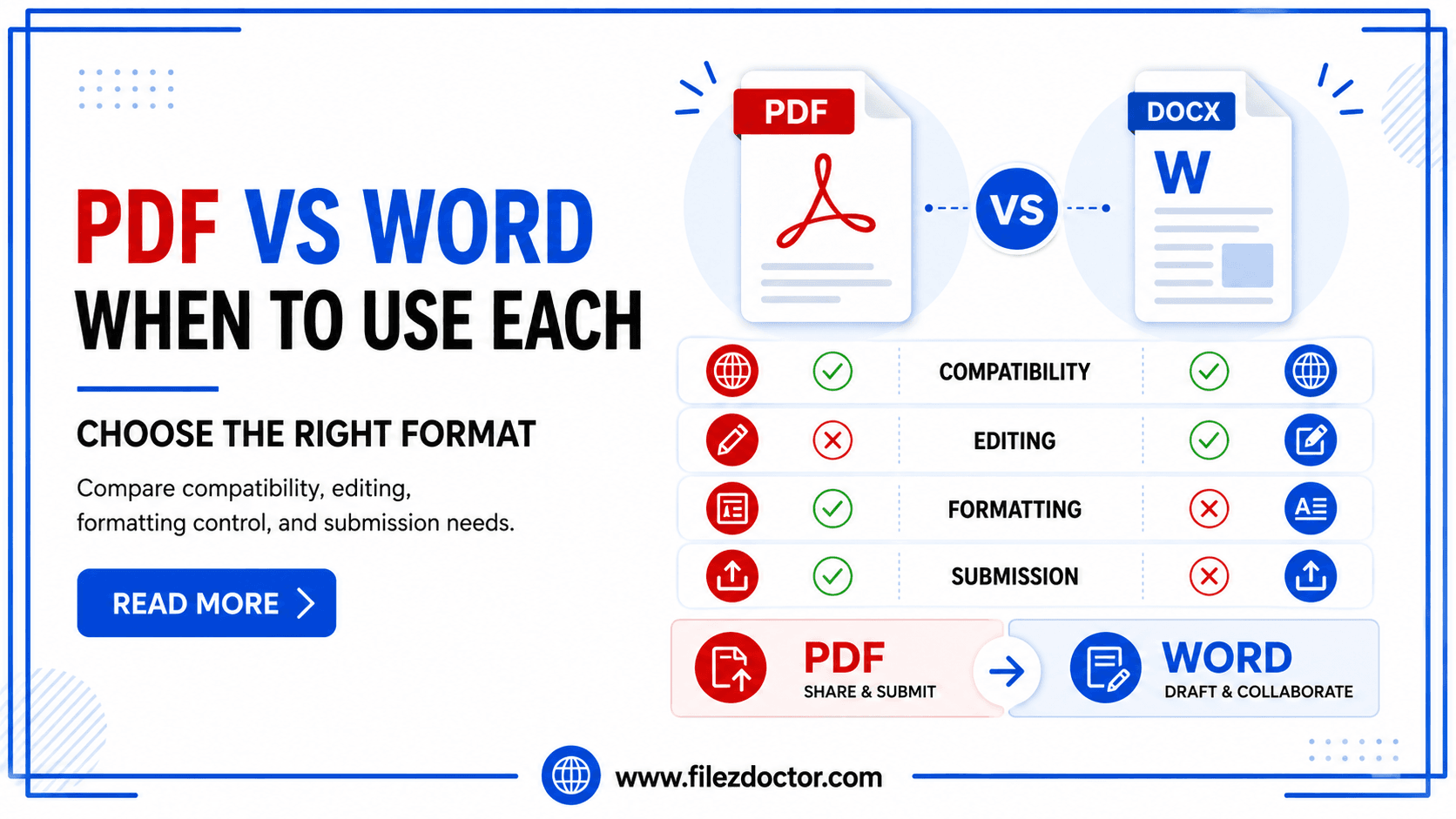
Choosing between a PDF and a Word document is less about personal preference and more about what you need next: editing, formatting consistency, searching, and how the recipient will interact with the file. Both formats are common, but they behave differently.
If you need to edit content that currently lives in a PDF, you may want the PDF to Word tool. This post explains when PDF is the better starting point and when converting to Word actually helps.
The core difference (in plain terms)
PDF: optimized for consistent viewing
A PDF is designed to look the same across devices and software. Fonts, spacing, and page layout are preserved as faithfully as the original document creator intended. That consistency is why PDFs are the “default choice” for submissions.
Word (DOCX): optimized for editing
Word documents are built for change. You can rewrite paragraphs, move sections around, update tables, and adjust styles. Word also makes it easier to collaborate with comments and tracked changes.
When you should use PDF
PDFs shine when formatting fidelity matters and the recipient should not accidentally reshape your document.
Use PDF when you are submitting or distributing
Job applications, school uploads, legal forms, and many client deliverables often require PDFs because:
- The layout stays stable.
- The file renders the same on different systems.
- It reduces the chance of “looks different on my computer” issues.
Use PDF when the document is final
Once you are satisfied with your final design, exporting to PDF is a safe way to lock the look and prevent accidental edits.
Use PDF for scanned or image-based content
If your document is essentially photos or scans, PDF is still a reasonable container. Even if you later need text, OCR can be applied as a follow-up step.
When you should use Word instead
Word is best when you need flexibility after the document is created.
Use Word when you expect edits
If you will revise the text, update numbers, or change formatting repeatedly, Word keeps the editing workflow simple. It also makes it easier to reuse sections and maintain consistent styles.
Use Word when the document needs collaboration
Comments, revision history, and co-authoring are generally smoother in Word environments.
Use Word when you maintain templates
Many organizations keep branded templates, style guides, and reusable components in DOCX. If that is your case, continuing in Word reduces rework.
The hidden issue: “I have both, but which one should I edit?”
The most common workflow mistake is editing a PDF directly with a method that rebuilds layout in unpredictable ways. Sometimes the tool “kind of” edits, but tables shift, spacing changes, or formatting becomes inconsistent.
In many real projects, the best approach is:
- Keep the editable master in Word (DOCX).
- Export to PDF when the document is ready to submit.
If you only have a PDF and need to make edits, converting to Word is often the practical path.
Converting a PDF to Word: what to expect
If you use a PDF to Word tool, you are usually converting layout plus text into a structure Word can edit. The exact result depends on what the PDF contains.
Text-based PDFs convert more cleanly
If the PDF was created from Word or a similar editor, the text is often stored as text and the formatting structure is more predictable.
Scanned or image-based PDFs need OCR first
If your PDF is a scan, the conversion quality depends on how well OCR identifies characters and how clearly the scan is captured. Poor contrast or skewed pages can reduce accuracy.
Complex layouts can require follow-up cleanup
Two-column resumes, intricate tables, and footnotes sometimes need manual adjustments after conversion. Plan for a short “polish pass” even when the conversion works well.
Practical decision guide
Use this rule of thumb:
- If the recipient needs to read exactly as designed, send PDF.
- If you need ongoing editing, keep and work in Word.
Scenario examples
-
Resume for a portal that accepts only a PDF: Export to PDF and verify it visually in the target viewer.
-
A contract that someone must edit: Start in Word (or convert to Word and then edit carefully) and re-export to PDF for final signing.
-
A brochure you designed: Keep the master in Word/your design tool, export to PDF for distribution.
A recommended workflow you can repeat
Here is a workflow that balances editing speed and final consistency:
Step 1: Start with the source you want to edit
If you have a Word file, keep it as the master. If you only have a PDF and need edits, plan for conversion.
Step 2: Convert only when necessary
Converting should be a deliberate step. If you convert too early, you might lose some layout control and spend time fixing formatting that should have been handled in the source file.
Step 3: Review in the target environment
After conversion or edits, open the result:
- in the app where the recipient will read it, or
- in multiple viewers to catch rendering issues.
Step 4: Export to the right format for submission
When you are done editing, export to PDF for stable formatting. If the portal requires DOCX, keep the Word version.
FAQ
Which format is more universally accepted?
PDF is generally more universally accepted for submissions because it preserves layout and renders consistently.
Can I edit a PDF like a Word document?
You can sometimes make changes, but editing a PDF directly can produce layout drift. If you need deep edits, converting to Word is usually more reliable.
Will formatting always stay identical after PDF to Word?
Not always. Complex tables and multi-column layouts can require manual cleanup. For simpler text-based PDFs, results are typically closer.
When should I use PDF vs Word for résumés?
Use PDF when a portal requires stable formatting. Use Word when you are actively editing content, tailoring it, and preparing multiple versions.
Final thoughts
PDF and Word are not competitors so much as different tools for different stages. PDFs protect your formatting. Word empowers editing. If you keep your master in Word and export to PDF when ready, you will usually avoid the most time-consuming formatting problems.
Ready to optimize your PDFs?
Experience the world's fastest PDF tools today.