How to Unlock Password-Protected PDF Documents Legally
Password protection in PDFs exists for a reason: it controls access. Trying to bypass it without permission can be unethical and illegal. This guide focuses on legitimate scenarios—when you own the document, have explicit permission, or are acting under an authorization policy.
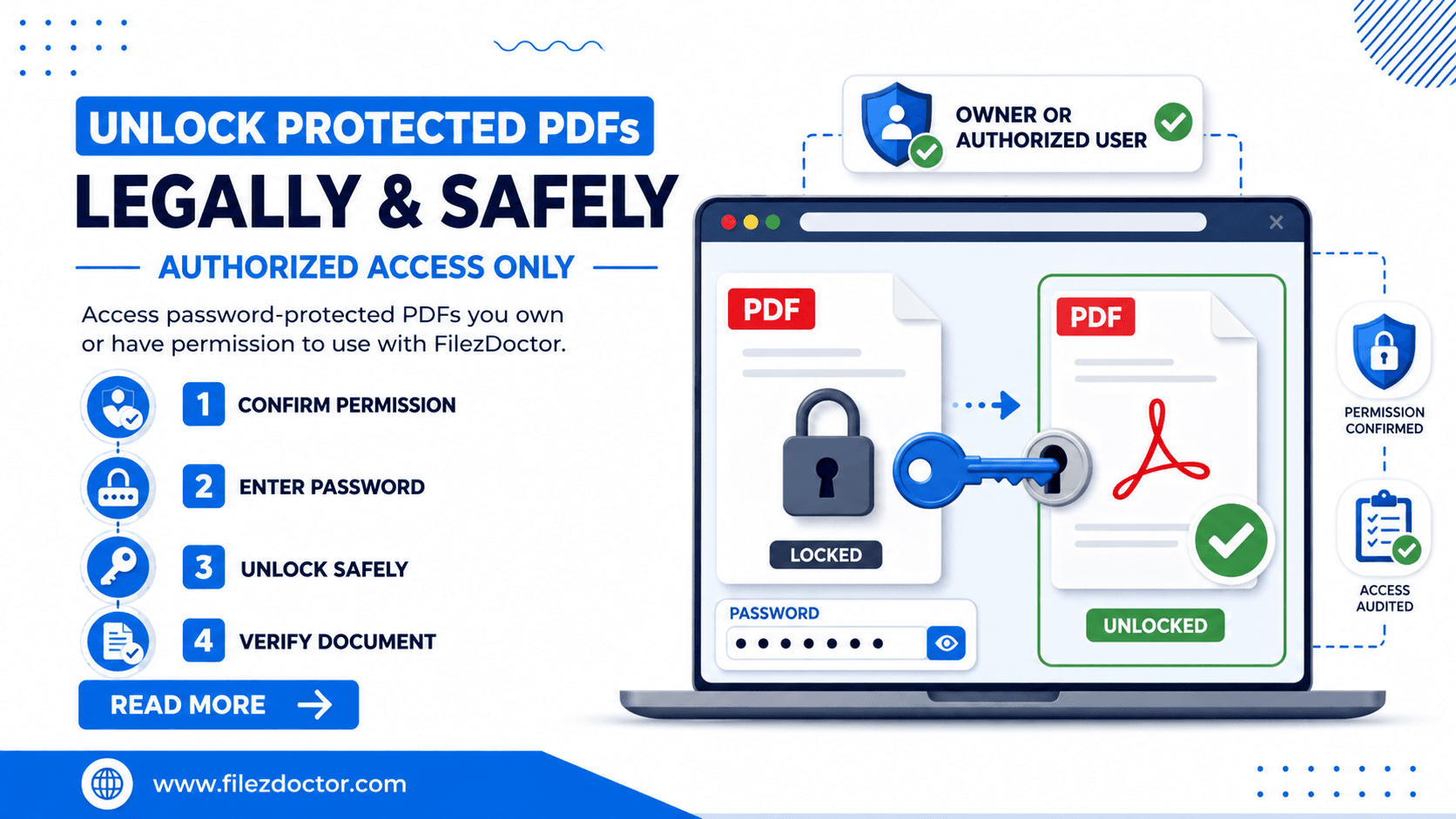
If you have the correct credentials, use Unlock PDF from FilezDoctor to regain access to the content you’re authorized to use.
When unlocking is appropriate (legitimate scenarios)
Unlocking is appropriate if one of the following is true:
You are the rights holder
For example, you created the PDF, you manage the account that generated it, or you have contractual ownership.
You have written permission
If your organization received the document from the owner or publisher, you likely have permission to access it.
You’re following an internal IT or compliance process
Some enterprises store PDF passwords securely for authorized staff and systems.
You need access for your own recordkeeping
If the file was password protected for internal sharing, your organization’s workflow may require you to unlock it later for archiving or auditing.
“Legal” does not mean “guess the password”
Avoid practices like:
- password guessing or brute-force attempts,
- using unauthorized tools or credentials,
- attempting to remove security when you do not have permission.
Even if you can find a way to “unlock” the file, accessing a protected document without the owner’s permission can violate laws, policies, and contracts.
Step-by-step: unlock when you have authorization
Step 1: Verify your right to access
Confirm ownership or authorization:
- Do you manage the source document?
- Did the sender provide a password securely?
- Is there an internal process that documents password handling?
If you can’t verify authorization, stop and contact the document owner or the responsible administrator.
Step 2: Retrieve the password through approved channels
Legitimate ways to get the password include:
- check secure password managers your organization uses,
- search internal ticketing or email threads where the password was shared,
- contact the sender/publisher to request the password again,
- retrieve credentials from your company’s document workflow system.
Step 3: Use FilezDoctor to unlock the PDF
Once you have permission and the correct password, use Unlock PDF to regain access.
A typical safe workflow:
- Upload the protected PDF.
- Provide the password if prompted (when applicable in your workflow).
- Download the unlocked output.
Step 4: Keep a secure record of the unlocked copy
Unlocking changes access controls. Consider:
- saving unlocked copies in restricted folders,
- documenting who unlocked the file and why,
- limiting distribution to authorized users.
If you forgot the password
Forgetting a password is common. The legitimate approach depends on how the PDF was protected:
If you generated the PDF
Check your own password storage workflow (password manager, secure notes, or original export scripts). If the file is part of a controlled system, review the process that created it.
If someone else created it
Contact the owner or issuer and ask for the password through a trusted method (for example, secure message or verified internal channel).
If it’s an enterprise document
Work with IT/security teams. Many organizations maintain recovery processes that comply with policy and audit requirements.
Common pitfalls
Pitfall 1: Unlocking too early in a review process
If a file is password-protected because it’s sensitive, ensure the unlocked copy only goes to authorized destinations.
Pitfall 2: Losing track of access changes
After unlocking, any additional sharing should be controlled. Without discipline, unlocked versions can leak.
Pitfall 3: Assuming all “password” protections are the same
Some PDFs use different protection modes (e.g., restrictions on printing or editing). Unlocking may change what you can do with the PDF, not necessarily remove every restriction in the way you expect.
Pitfall 4: Skipping authorization documentation
If you ever need to explain how you accessed the file, authorization records matter.
After you unlock: handle access responsibly
Unlocking changes the sensitivity boundary of your document. Treat the unlocked copy as the same (or higher) confidentiality level as the original password-protected file.
Practical steps:
- store the unlocked PDF in a restricted folder (or encrypted storage) consistent with your policy,
- limit distribution to the minimum required recipients,
- track who unlocked the document and when, especially if the content is internal or governed by retention rules,
- avoid re-uploading the unlocked PDF into broader systems unless you have approval.
If you need to share externally, consider whether you should re-protect the document with access controls or sanitize metadata first. That way you reduce the risk of accidentally exposing more than intended.
FAQ
Can I unlock a PDF I don’t own?
Only if you have explicit permission or authority from the owner. If not, contact the owner or the responsible administrator.
Does unlocking remove security for everyone?
Unlocking generally removes the password-based access control for the output copy. You should still treat the content as sensitive and manage distribution.
Is there a safe way to handle unlocked copies?
Yes: store unlocked copies in restricted locations, limit sharing, and document the unlock reason for auditability.
What if I’m not sure whether I’m authorized?
Don’t attempt to bypass protection. Verify authorization with the document owner or your IT/compliance team first.
Ready to optimize your PDFs?
Experience the world's fastest PDF tools today.