How to Split a PDF by Page Range
Sometimes you do not need the entire PDF. You need only the pages that matter: a specific contract section, a few pages of a report, or a page range for a reviewer. Splitting by page range helps you share precisely what someone needs without uploading a huge file.
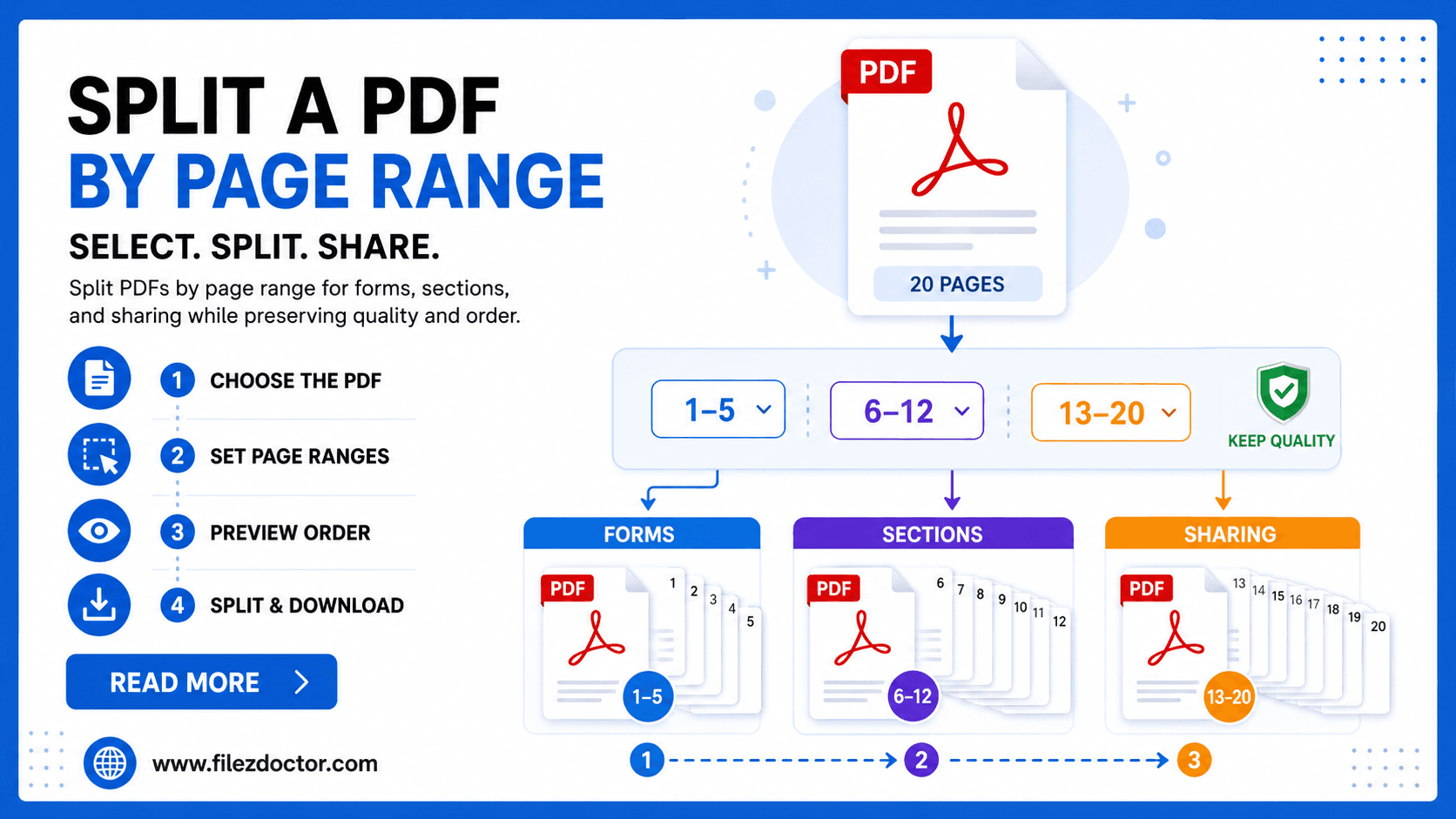
If you want a straightforward way to create new PDFs from selected pages, use the Split PDF tool.
When splitting by page range is the best move
Splitting is helpful when:
- portals limit file size and page count
- you need to share only relevant sections for review
- you are sending a contract with multiple parties and want separate page packages
- you are organizing long documents into smaller, easier-to-navigate files
Understand page ranges before you start
Page ranges are a simple idea, but they cause mistakes when page numbering is unclear. A few tips:
- PDF “page 1” is usually the first page in the file, regardless of how the document labels pages visually.
- If your PDF includes a cover page plus extra front matter, your “Page 1” in the PDF might be a title page.
- When splitting for submission, verify that the pages you select correspond to the labeled pages in the content.
Example ranges:
1-3means the first three pages5-8means four pages (5, 6, 7, 8)10-10is a single page
Option A: Split with a dedicated tool (recommended)
Using a tool designed for splitting is usually the cleanest approach because you can specify exact ranges and download separate files.
General steps:
- Upload the PDF.
- Select the output mode: “split by page range” or “extract pages.”
- Enter the page ranges you want.
- Choose where the new PDFs should go (download location).
- Download and verify each output file.
After splitting, open each file and confirm:
- the first page is correct
- no pages are missing at the boundaries
- file names match your range plan
Option B: Split on desktop apps (conceptual workflow)
Even if you do not use an online tool, many desktop readers/editors can extract pages. The exact UI varies, but the workflow is similar:
Step 1: Locate the pages you want
Use thumbnails to navigate to:
- the start page
- the end page
If the file is long, search within the document (if it is text-based) to find a relevant section first.
Step 2: Extract or export the selected pages
Look for actions like:
- Extract pages
- Save as new document
- Export selection
Step 3: Confirm output orientation and size
Some PDFs include mixed orientations (portrait and landscape). Splitting keeps those pages, but the viewer experience can feel different per output file.
Option C: Split on mobile (practical tips)
Mobile apps can split PDFs, but not all of them support precise page range extraction. If you see only “pages to extract,” you are in luck. If you only see “single page export” without ranges, you may need multiple extraction passes.
Best practice on mobile:
- Use ranges if available.
- If range selection is clunky, start with fewer pages first, then adjust.
- Validate page boundaries carefully because mobile preview lists sometimes skip or compress thumbnails.
Tips to preserve quality and keep things readable
Splitting should not reduce quality by itself, but it can when:
- the tool rasterizes pages for output
- the PDF contains heavy images that get recompressed
To preserve quality:
Prefer extracting pages instead of re-creating the PDF
Extraction usually keeps the original page objects intact. Re-creation can re-encode images or fonts.
Keep annotation behavior in mind
If your PDF includes comments or highlights, confirm that:
- annotations are included in the split outputs
- form fields behave as expected (if you keep them)
Verify searchability
If the PDF is OCR-generated or text-based, confirm the split output still supports text selection and search.
Common mistakes
Selecting the wrong boundary pages
Most mistakes happen at the start or end of a range. Double-check:
- your range notation
- the page thumbnails
- the content around the boundary
Forgetting about cover pages and blank separators
If your PDF includes a blank spacer or cover page, your intended “Page 1” for a range might be offset.
Not checking the final download file size
Splitting typically reduces file size, but if the pages you extracted contain large scans or images, outputs can still be sizable.
Recommended splitting patterns (real-world)
Here are patterns that work in common scenarios:
- Contract: split each section into separate files (intro, terms, signature page)
- Report: extract key pages into a “summary package”
- Forms: send only the page(s) that require review
- Submissions: split a long document into portal-friendly chunks
FAQ
Can I split a PDF into multiple files at once?
Some tools allow entering multiple ranges in one run. If you do not see that option, you can split multiple times and name files clearly.
Will splitting remove metadata or annotations?
It might, depending on the tool. Always verify the first and last pages of the output file, especially if you rely on forms or annotations.
How do I confirm the page numbers are correct?
Use thumbnails or search to identify the correct start and end pages, then verify the boundary after splitting.
What if the PDF is scanned images?
Splitting works the same way, but outputs may remain large. If you need searchable text, consider OCR separately and then merge/split again as needed.
Final thoughts
Splitting a PDF by page range is the fastest way to share only what matters. Define the ranges carefully, extract pages using a range-capable workflow, and then verify boundaries and readability in each output file.
Ready to optimize your PDFs?
Experience the world's fastest PDF tools today.