How to Sign PDF Documents Online: A Practical, Verifiable Guide
Signing PDF documents online is common for contracts, approvals, and internal workflows. The real requirement, however, is not just “a signature image”—it’s a signature that other parties can verify reliably.
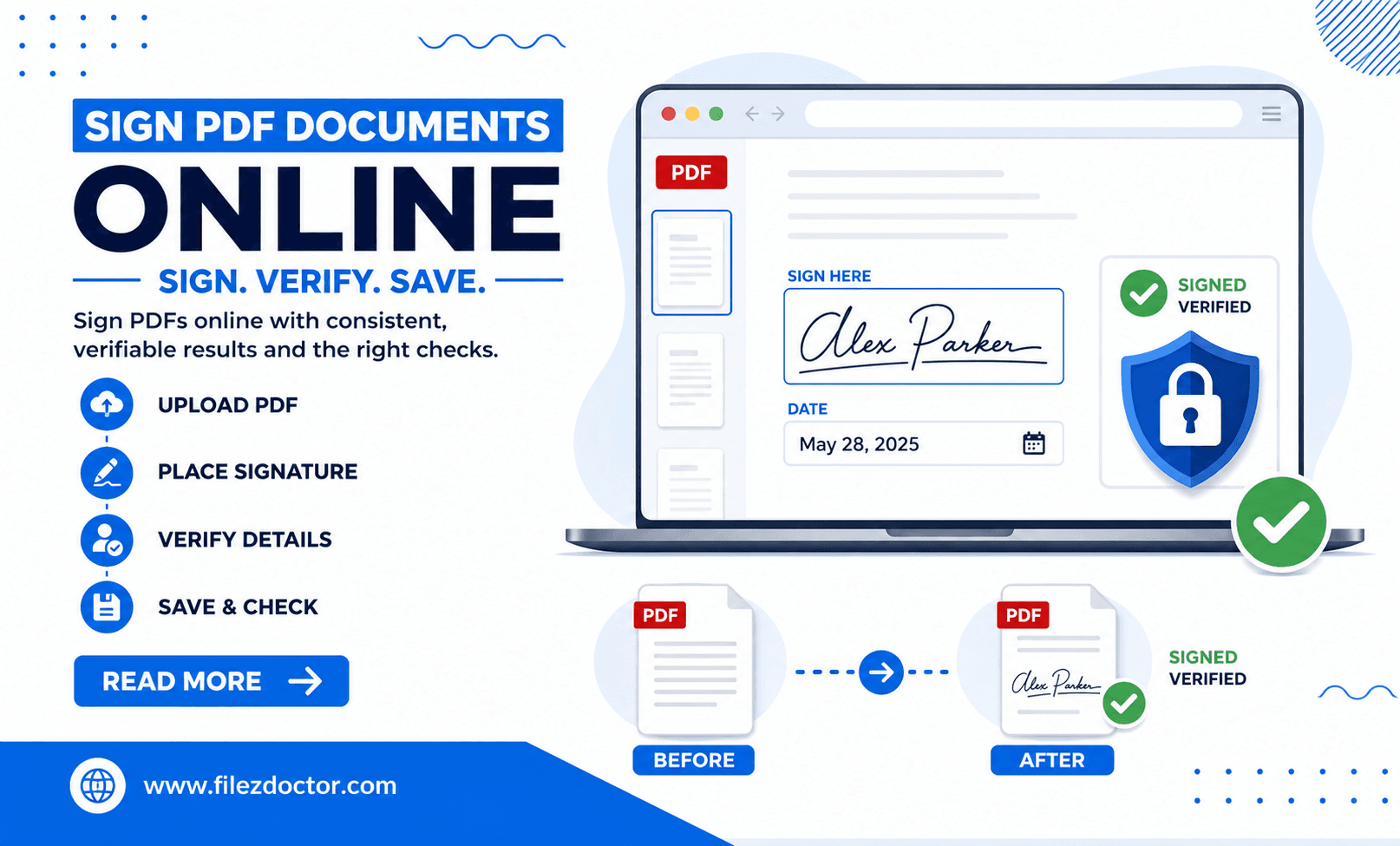
If you need a clean signing workflow, start with Sign PDF from FilezDoctor and follow a verification-first process.
Understand the type of signature you need
People say “sign a PDF” but the underlying technology can differ.
Electronic signature (e-sign)
Often includes a signature method that indicates agreement. Depending on the provider and jurisdiction, it can be sufficient for many business workflows.
Digital signature (certificate-based)
Digital signatures typically include cryptographic verification using a certificate. They provide strong integrity checks: if the PDF changes after signing, verification may fail.
Before you sign, confirm whether your process needs:
- proof of identity,
- cryptographic integrity,
- a visible signature appearance,
- audit trails for compliance.
Step-by-step: a safe online PDF signing workflow
Step 1: Confirm the document is final
Signing is usually meant for the final version. If you sign and then re-export or edit the PDF later, the signature may become invalid (especially for digital signatures).
Step 2: Review the content and fields
Check:
- all required pages are present,
- the correct name/title is used,
- dates and terms are accurate,
- required signature positions are available.
If the document includes form fields, ensure the correct signer fields are targeted.
Step 3: Sign using FilezDoctor
Use Sign PDF:
- Upload the PDF.
- Choose signing options (such as where the signature should appear).
- Apply the signature and download the signed PDF.
Tip: If you need multiple signatures (e.g., approver then customer), coordinate the signing order so each signer signs the latest version.
Step 4: Verify immediately
After signing, verify in at least one viewer:
- confirm the signature appears in the correct location,
- check signature status (valid/verified if available),
- ensure the signed PDF opens consistently in the intended environment.
Verification is your best protection against “it looked signed but failed verification” problems later.
Designing for readability (visible signature quality)
Even if the signature is verifiable, it should also be readable:
- Use sufficient contrast for the signature block.
- Ensure the signature isn’t placed over important text.
- If the PDF is printed, confirm the signature is still visible at print scale.
Common pitfalls (and how to avoid them)
Pitfall 1: Signing a PDF, then changing it
This is the most common cause of verification issues. Re-saving, re-exporting, or applying unrelated transformations after signing can break integrity checks.
Pitfall 2: Multiple signatures applied out of order
When multiple parties sign, one person’s changes should not invalidate another’s signature. Use the workflow supported by your signing process.
Pitfall 3: Confusing signature “images” with verification
Some workflows can overlay a signature-looking mark without producing a verifiable signature. If you need verification, ensure you are using the signing method your process requires.
Pitfall 4: Not confirming signer identity requirements
For compliance, identity proof rules can be strict. Make sure the signing method meets internal and legal expectations.
Verification and audit trail
Treat signature verification as part of the signing process, not an afterthought. After you download the signed PDF:
- confirm the signature shows in the correct position and on the correct page,
- check whether the PDF viewer reports the signature as valid/verified,
- ensure the signed file opens without errors in the same environment your recipient will use.
If your organization needs an audit trail, store the signed PDF along with relevant signing context (who signed, when, and which signing method was used). Some workflows also produce logs or certificate details you can keep for compliance records.
For multi-signer documents, verify after each signer step. A valid-looking signature can still fail integrity checks if the PDF was modified after signing.
Troubleshooting verification failures
If verification fails, the most common causes are:
- the PDF was changed after signing (even a small edit can break integrity checks),
- the recipient environment uses a different verification method or configuration,
- certificate trust issues on the recipient’s device.
To troubleshoot:
- ask the signer to re-sign the final, downloaded version if anything changed after signing,
- ensure the recipient uses a compatible PDF viewer,
- keep a copy of the signer’s verification details and provide them to your compliance team if needed.
FAQ
Can I sign the same PDF multiple times?
In many workflows, yes, but it depends on whether signatures remain valid after each addition. Verify after every new signature step.
Will signing change the file size?
It can. Adding signature data and certificates may increase file size slightly.
How do I know the signature is valid?
Open the signed PDF and check the signature verification status in your PDF viewer or by using your process’s verification step.
What if the recipient cannot verify?
First confirm the PDF wasn’t modified after signing. Then test verification in the recipient’s viewer environment and check the signature method requirements.
Ready to optimize your PDFs?
Experience the world's fastest PDF tools today.