How to Rotate PDF Pages Correctly (So Every Page Looks Right)
Rotating a PDF page sounds simple—until you realize one page is upside down, another is sideways, and the rotation you applied doesn’t match what you see in different viewers. That’s because PDF page orientation can be stored as *page rotation metadata* plus the page content itself, and different apps handle that metadata differently.
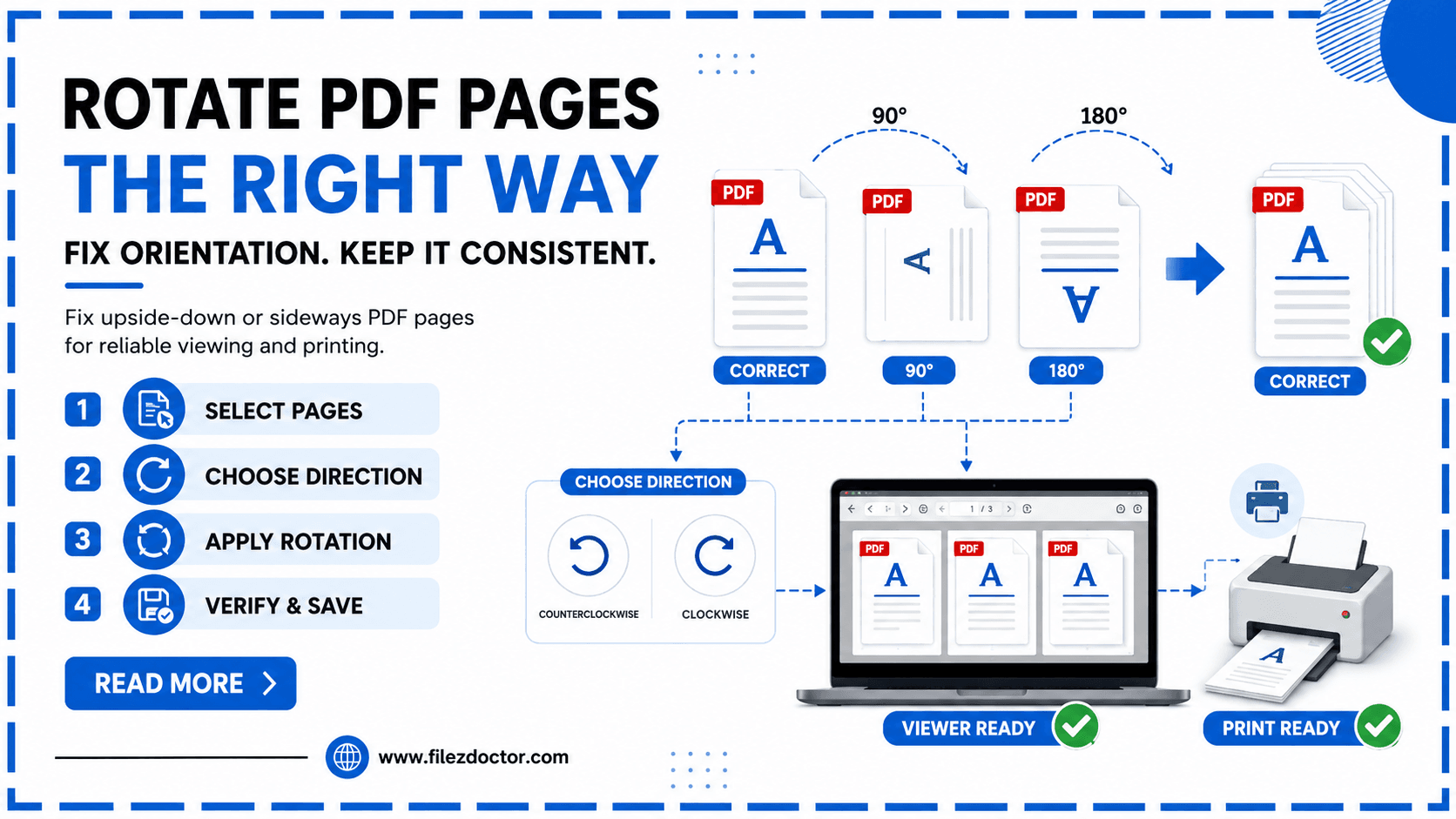
If you want a consistent outcome, use Rotate PDF from FilezDoctor and apply rotation in a controlled way.
What causes “wrong orientation” in a PDF?
Most rotation problems come from one of these sources:
1. The original scan was captured sideways
Many mobile scanning apps detect orientation imperfectly (especially for documents with unusual borders, dark backgrounds, or mixed rotation).
2. Page rotation metadata differs from rendered content
PDFs can store rotation information in the page dictionary. Some viewers respect it, while others render content in a way that makes the page appear rotated twice.
3. You rotated visually but didn’t “commit” the rotation
In some editors, rotating is a display adjustment rather than a content transformation. When you export or share, the view may change.
4. Mixed orientations across pages
A multi-page document can contain a mix of portrait and landscape pages or pages scanned at different times with different orientation detection.
Rotation strategy: metadata vs. content
When you “rotate a page” you may actually be doing one of two things:
Display rotation (quick fix)
The PDF tells viewers to rotate the page while rendering. This can work well, but it depends on viewer behavior and the way the PDF was produced.
Content rotation (more consistent sharing)
The tool changes the page content so that the rotation becomes “baked in.” This is typically more reliable when the PDF will be opened in different systems.
For the most consistent experience across email clients, document portals, and print pipelines, prioritize workflows that apply rotation at the document level so pages display correctly everywhere.
Step-by-step: rotate PDF pages the safe way
Step 1: Check a single page first
Open the PDF and scroll to a few pages that look wrong:
- one page that is clearly upside down,
- one page that is clearly sideways,
- a “normal” page for comparison.
This tells you whether the problem is consistent (all pages need the same rotation) or mixed.
Step 2: Identify the direction needed
Most common corrections:
- 90 degrees clockwise
- 90 degrees counterclockwise
- 180 degrees (upside down)
Don’t rely only on “left/right” guesswork. Confirm by looking at text orientation (headers, page numbers, or readable sentences).
Step 3: Rotate pages using FilezDoctor
Use Rotate PDF to apply the required rotation.
In practice, a solid workflow looks like:
- Upload the PDF.
- Choose rotation (and specify which pages if you can).
- Download the updated PDF.
Tip: If only certain pages are rotated incorrectly, rotate those pages specifically rather than changing the whole document.
Step 4: Validate across viewers
After rotation, verify:
- in your default PDF viewer,
- in your browser (if you use one),
- and in the environment where others will open it (work portal, email preview, printer).
If only one viewer shows an issue, it may be respecting metadata differently. Content-based rotation avoids most of those surprises.
Step 5: Prepare for printing (optional)
If you plan to print:
- confirm page size and margins after rotation,
- check that headers/footers are not cropped,
- do a quick “print preview.”
Rotation and page box handling can affect how printers interpret the page.
Common pitfalls to avoid
Pitfall 1: Rotating the page “twice”
If a PDF already has rotation metadata set and you apply a transform without accounting for it, pages can end up rotated 180 degrees from where you intended.
Pitfall 2: Rotating everything when only some pages are wrong
Batch-rotating the entire document can break the pages that were already correct. Prefer targeted rotation for mixed-orientation PDFs.
Pitfall 3: Confusing page orientation with paper orientation
Sometimes the PDF is correct but the printing settings are wrong (portrait vs landscape). Rotation may not be the root cause in those situations.
Pitfall 4: Editing then re-saving in a different tool
If you rotate the PDF and then open it in another editor, that editor might reset or reinterpret rotation metadata. Plan your rotation as the final “layout fix” step.
FAQ
Why does my rotated PDF look right in one app but wrong in another?
Different viewers handle PDF rotation metadata and page boxes differently. Some respect the metadata more strictly, while others render in a way that changes the apparent orientation.
Should I rotate metadata or rotate content?
If the PDF will be shared widely, rotating content (baking it in) is usually more consistent. Rotation metadata can be fast but may not behave identically in every viewer.
Can I rotate only certain pages?
Many tools allow selecting specific page ranges. If your PDF has mixed orientation, rotate only the affected pages to avoid harming pages that are already correct.
Will rotation change the file size?
Often it doesn’t change dramatically. However, if rotation requires re-rendering or rewriting page structures, you may see a slight change in size.
Ready to optimize your PDFs?
Experience the world's fastest PDF tools today.