How to Password Protect a PDF for Free
Password-protecting a PDF helps keep sensitive information from casual viewing. It is useful when you are sharing personal details, invoices, contracts, medical documents, or anything that should not be exposed in transit.
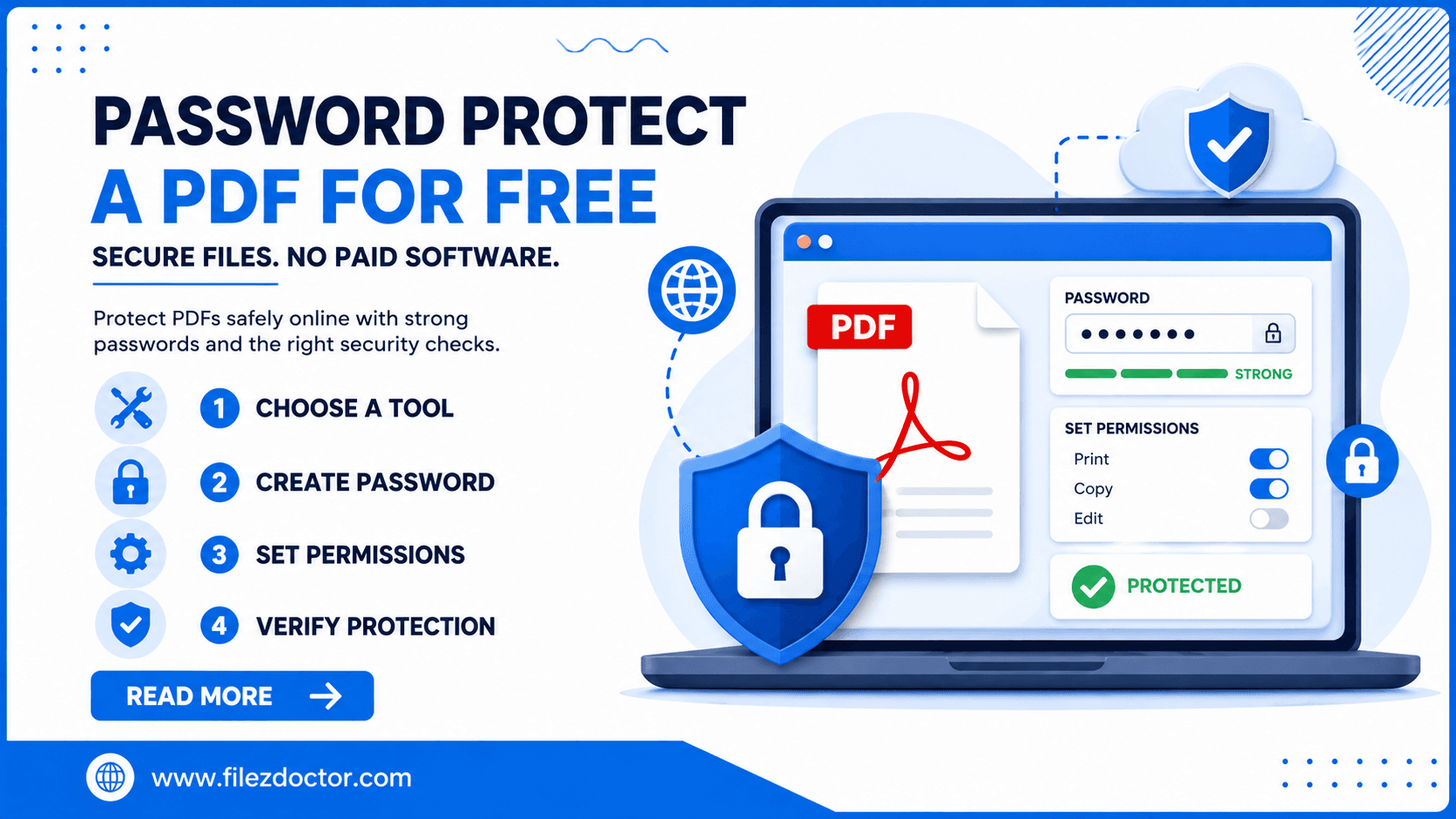
Many people assume password protection requires paid desktop software. That is often not true. With the right workflow, you can protect a PDF with a password without installing heavy tools. When you need a simple approach, use the Protect PDF tool as your starting point.
What “password-protecting a PDF” actually does
PDF password protection is not the same as encrypting the entire file on a cloud server with a separate key. It typically provides these protections:
- Opening the document requires a password (owner controls).
- Some permissions can be limited, such as printing, copying text, or editing.
In practice, this means the recipient must enter the password to view the content, and some actions may be restricted depending on how the protection is configured.
Decide which password type you need
Most PDF tools expose similar concepts:
Owner password vs user password
- The user password (often called the “open password”) controls who can open and view the PDF.
- The owner password controls permissions and policy (for example, whether the user is allowed to print or copy).
If you want a straightforward “people must enter a password to view it” setup, focus on the open/user password.
Permission settings (copy, print, edit)
Some workflows let you restrict:
- Copying text and images
- Printing
- Editing or form filling
Choose permissions based on the recipient’s needs. Over-restricting can frustrate legitimate reviewers.
A free, practical workflow (tool-based)
Use this general flow regardless of which platform you pick:
- Prepare your PDF and confirm it is the correct version.
- Upload the file to a protection tool that supports password settings.
- Set the open password and (optionally) configure permissions.
- Download the protected PDF.
- Open it yourself to confirm you can access it with the same password.
Then share the password securely with the recipient.
Step-by-step: protect your PDF
Step 1: Start with the final document
If you protect a draft and later revise the PDF, you may end up sending mismatched versions or re-protecting multiple times. Keep the protected PDF aligned with what you intend to share.
Step 2: Choose a strong, memorable password
For security, prefer passwords that are:
- long (ideally 10+ characters)
- not easily guessed from personal info
- unique for this document
Avoid common patterns like Password123 or birthdays. If you use a password manager, generate a password and store it safely.
Step 3: Decide whether to restrict permissions
If the PDF contains sensitive information, consider limiting printing or copying. If you expect a reviewer to quote sections, allow copying. Permissions are a trade-off between usability and security.
Step 4: Protect, download, and verify
After protection:
- Re-open the protected PDF in your viewer.
- Ensure the password prompt appears (meaning protection is active).
- Confirm you did not lose annotations, form fields, or usability features you need.
Verification is important because some documents behave differently depending on the viewer app.
Sharing securely: do not leak the password in the same place
Password-protecting a PDF is only effective if the password is shared responsibly. A few safe practices:
- Share the PDF via link or file transfer.
- Send the password through a separate channel (for example, a secure chat or SMS, depending on your threat model).
Avoid putting the password in the subject line, public thread, or unprotected email.
Common pitfalls to avoid
Using a password that is too short
Short passwords are easier to guess. If the information is sensitive, increase password length rather than relying on complexity tricks alone.
Forgetting the password
There is usually no recovery. Make sure you store it in a secure place before sending.
Assuming protection prevents all leaks
If someone can open the PDF, they can sometimes screenshot, copy, or forward content. Passwords reduce casual access, but they are not a substitute for proper sharing controls.
Protecting the wrong file version
Double-check filenames and dates before uploading. It is surprisingly easy to protect an older draft and then wonder why the recipient cannot find the updated data.
When you might need stronger controls
If you are dealing with highly sensitive documents or regulated data, consider additional controls beyond PDF passwords:
- limit where the file can be downloaded
- use expiring links
- restrict access to specific recipients
In many workflows, you can combine password protection with a secure link-based delivery process.
Where FilezDoctor fits in
To keep things simple, you can use the Protect PDF tool. It streamlines the process of applying an open password and adjusting permissions so you can share protected documents without paying for a heavy desktop setup.
FAQ
Is it truly free to password-protect a PDF?
It depends on the provider and the features available, but there are practical workflows that let you protect a PDF without paying for a dedicated desktop application. Use a tool that matches your needs and verify your security settings.
Will recipients always be able to open the protected PDF?
Most modern PDF viewers support standard PDF password protection, but some older viewers might behave differently. If possible, test with the recipient’s viewer type (desktop vs mobile).
Can I remove the password after sending?
Once the protected PDF is created, the password controls access. To remove protection, you typically need to start from the unprotected original and re-protect (or stop protection). You cannot reliably “unlock” a PDF without the correct password.
Does password protection prevent printing?
It can restrict printing permissions depending on how the PDF is configured and what the recipient’s viewer honors. Do not assume it is absolute, but it can deter casual copying/printing.
Final thoughts
Password-protecting a PDF for free is achievable when you use a workflow that lets you set an open password, optionally adjust permissions, and then verify the result. Pair that with responsible password sharing, and you will significantly reduce the risk of accidental exposure.
Ready to optimize your PDFs?
Experience the world's fastest PDF tools today.