How to Merge PDFs on iPhone and Android
Merging PDFs is one of those tasks that sounds simple until you try it on a phone. You might have a few documents from different apps, screenshots you saved as PDFs, or forms that must be submitted as a single file. The end goal is consistent: a combined PDF with the right order, correct page numbering, and readable content.
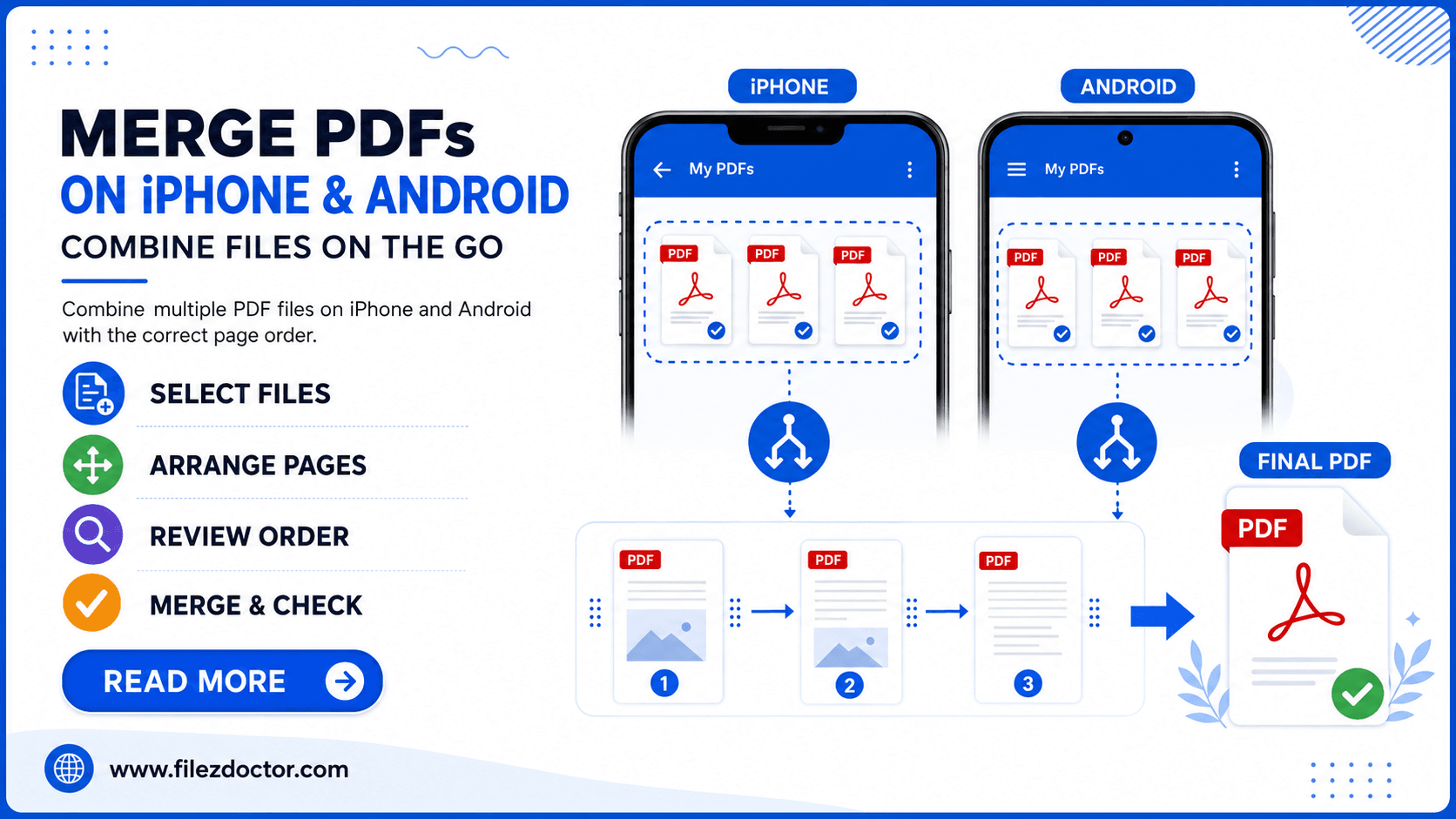
This guide walks through practical ways to merge PDFs on both iPhone and Android. If you want a device-independent approach, use the Merge PDF tool and skip the complexity of hunting for the “right” app on each platform.
When you should merge instead of sending multiple files
Before you combine everything, consider why merging helps:
- Many forms and portals accept only one upload.
- Reviewers often prefer a single file for easier navigation.
- A unified PDF keeps formatting consistent across sections.
- It reduces the risk of sending the wrong version of a document.
Merging is especially useful for workflows like job applications, school submissions, invoices, and forms that require signatures across multiple pages.
What can go wrong (and how to avoid it)
Mobile merging usually fails in predictable ways. Keep an eye on these issues:
Ordering mistakes
PDFs may look “in order” in your gallery or downloads list, but the merge result depends on how the tool/app reads the files. Always double-check the first and last pages after merging.
Embedded images and exports
If some of your pages come from screenshots, their resolution might differ from text-based pages. When you merge, you are not automatically improving quality; you are just combining what is already there.
Page size differences
Two PDFs might have different page sizes (for example, one is Letter, the other is A4). The merge can produce unexpected white borders or scaling.
The best fix is to standardize page settings before merging, if your source documents allow it.
Merge PDFs on iPhone (practical options)
On iPhone, merging depends on which PDF-related app you have installed. Apple’s built-in Files app is great for organizing documents, but you usually need an app that explicitly supports “combine” or “merge PDFs.”
Here is a reliable approach regardless of the app UI:
Step 1: Collect your PDFs in one place
Move all the PDFs you want to merge into the same location so you can reliably select them. A good pattern is:
Filesapp- Create a folder called something like
Application - PDFs - Add all relevant PDFs to that folder
Step 2: Use a PDF app that supports merging
Open the app and look for actions like:
- “Combine”
- “Merge”
- “Create PDF” and then “Add documents”
Select the PDFs in the order you want. If the app lets you reorder pages, use that to correct any sequence issues before exporting.
Step 3: Review the merged output
Open the merged PDF and do a quick scan:
- Confirm the cover/first page is the right one.
- Check a mid-document page (not only the start and end).
- Ensure the page count matches your expectations.
Step 4: Save and share the final file
Export the combined PDF to Files (or your preferred cloud folder) so you can easily upload it to whatever portal requires it.
Merge PDFs on Android (practical options)
Android gives you more flexibility because you can use multiple PDF viewers and office apps that include “merge/combine” features. Like iPhone, the built-in apps may not offer a full merge function.
Use this process:
Step 1: Gather documents and confirm they are PDFs
Before merging, ensure every source file is truly a PDF. If one file is actually an image (JPG/PNG), you may need to convert it to PDF first.
Step 2: Choose your merge method
Look for:
- “Merge PDFs” in a PDF editor/viewer app
- “Combine” in an office app’s export tools
- A workflow that imports multiple PDFs and then exports one PDF
Step 3: Set the merge order
Android apps sometimes merge in the order you select files, but some reorder by filename. If it matters (it always matters for submissions), set the order explicitly or reorder after import.
Step 4: Export and verify
Open the final PDF and confirm:
- Page order is correct
- Text is readable
- Any form fields remain usable (if you need them)
The fastest cross-device solution: FilezDoctor Merge PDF
If you do not want to worry about which phone app has the right feature, use the Merge PDF tool. The general workflow is:
- Upload the PDFs you want to combine.
- Confirm the order (and adjust if your workflow allows).
- Merge.
- Download the final file.
This approach is useful when you start on one device (for example, you scanned forms on your phone) and finish on another (for example, you edit the cover letter on a laptop).
Tips for a clean, professional merged PDF
Standardize page orientation
If one document includes rotated pages, the merge can look inconsistent. Check orientation after merging and fix if needed.
Keep a consistent naming scheme
When multiple merges are possible, name the files clearly, such as:
Resume - v3.pdfCover Letter.pdfReferences.pdf
Then merge into something like Application - Final.pdf.
Compress only after merging
If you plan to reduce file size, merge first and compress second. Compressing each file separately can create unnecessary differences.
FAQ
Can I merge PDFs without installing anything?
Often you need a PDF app that supports merging, but you can also use an online tool like Merge PDF to avoid installing a specific mobile editor.
Will the formatting change after merging?
Typically the merged PDF preserves each source’s original formatting. However, page size mismatches can cause scaling or borders, so always review after merging.
How do I make sure pages stay in the correct order?
Select PDFs in the desired order, and if your tool supports reordering, check the thumbnail/page list before exporting. Then verify the first, middle, and last pages.
What if one PDF is a scanned image?
It will merge like any other PDF. If you also need the text to be searchable, consider OCR separately (for scanned pages) after or before merging, depending on your workflow.
Final thoughts
Merging PDFs on iPhone and Android is mainly about organization and verification. Collect your files in one place, use a merge-capable app (or FilezDoctor’s tool), confirm ordering, and do a quick quality check before submitting. With that process, your merged document will look intentional and professional every time.
Ready to optimize your PDFs?
Experience the world's fastest PDF tools today.