How to Add Page Numbers to PDF Reports (Without Messing Up Layout)
Page numbers are small, but they change how usable a report becomes. Without them, printed pages don’t stack neatly and references like “see page 5” turn into guesswork.
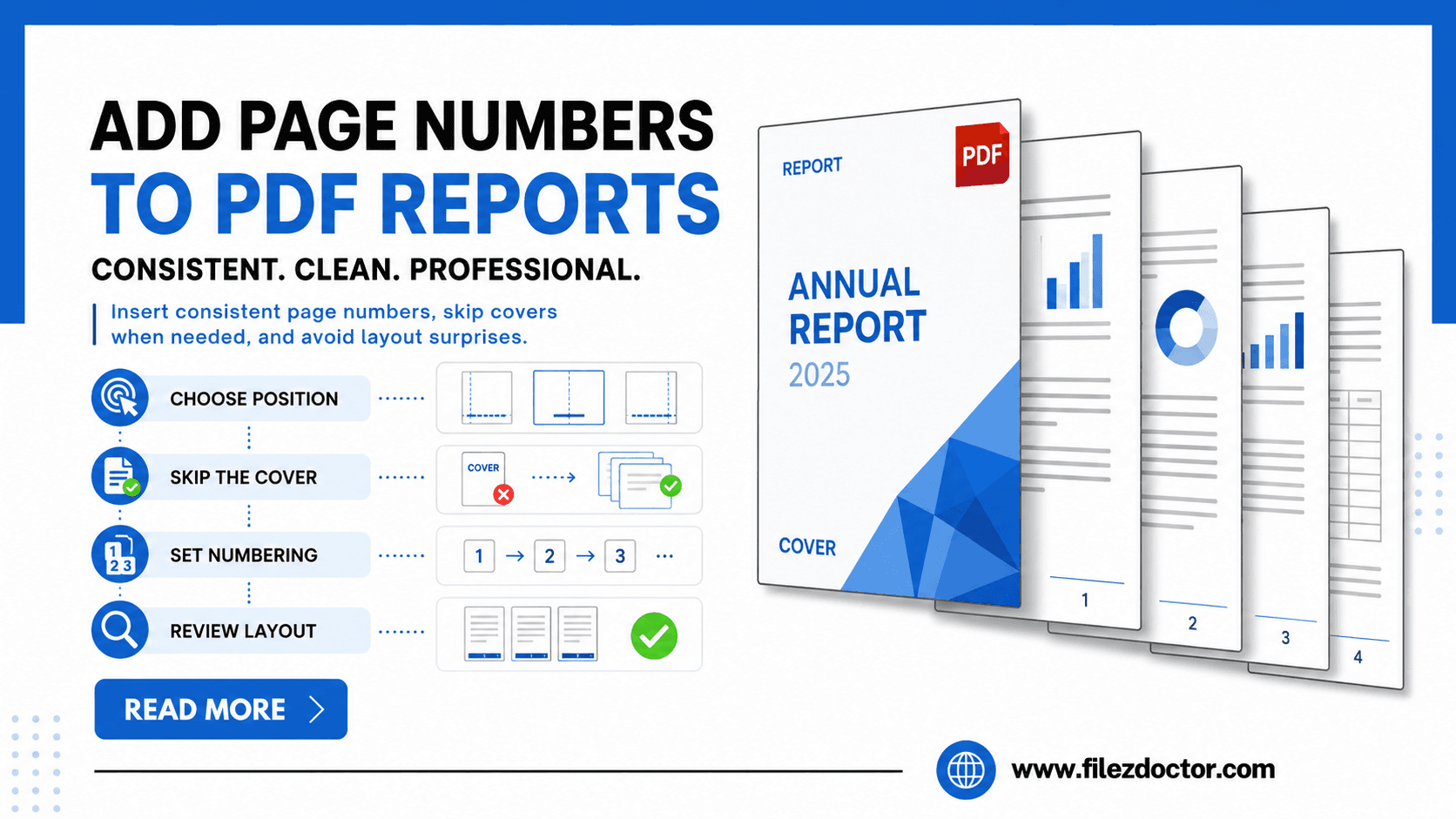
The challenge is that PDFs can store headers/footers differently, and naive page-number edits can clash with existing text, margins, or page boxes. To keep pagination consistent, use Add Page Numbers from FilezDoctor.
Decide on a page-numbering rule first
Before inserting numbers, decide how the report should behave:
Should the cover page have a number?
Common options:
- no number on the cover,
- number the cover as page 1,
- number the cover but start visible numbering from page 2.
Do you need “Page X of Y”?
Some reports require total-page counts for formal documents.
Where should the number live?
Typical placements:
- bottom center for printed reports,
- bottom right for forms,
- top left for internal documentation.
If the PDF already has headers/footers, match the existing style so numbers blend in.
Step-by-step: add page numbers cleanly
Step 1: Check whether you have existing header/footer content
Look at a couple pages:
- cover page (if any),
- first content page,
- a middle page,
- last page.
If page headers already exist, page numbers should not overlap them. Also confirm margins are enough for the number text.
Step 2: Set the starting number
If you need the visible page count to start later (for example, after a cover or table of contents), choose:
- a start number (like 1),
- a skip rule (like “skip first page”).
This avoids the common issue where administrators manually renumber and forget to update later.
Step 3: Add numbers with FilezDoctor
Use Add Page Numbers:
- Upload the report PDF.
- Select placement (top/bottom, left/center/right).
- Set numbering rules such as starting page or skipping the cover if supported.
- Download the updated PDF.
Step 4: Verify spacing and alignment
After download, review:
- page 1 and the next few pages,
- whether numbers align across pages,
- whether numbers remain readable at the report’s intended print scale.
If you plan to print, confirm the numbers don’t get clipped by printer margins.
Choosing a style that looks professional
When you add page numbers, consider:
Font and size consistency
Use the same font family (or a close match) to keep the report cohesive.
Contrast
Light gray text may look fine on-screen but disappear when printed. Test a quick print if the report is going to print.
Alignment
Center alignment works well for “Page X” and “X of Y.” Right alignment can work better for page references alongside other footer content.
Common pitfalls (and fixes)
Pitfall 1: Page numbers overlap existing elements
Fix by moving numbers to another corner or adjusting margins (and then re-adding).
Pitfall 2: Cover page numbering errors
This is usually a starting-rule issue. Confirm whether the tool supports skipping specific pages or setting a start page.
Pitfall 3: Inconsistent totals (“of Y”) mismatches
Totals depend on the final page count. Add page numbers only after the PDF is finalized, not before it’s merged with attachments.
Pitfall 4: Different page sizes in one document
If your PDF includes rotated or varying-size pages, headers/footers may land differently. Run a quick check on those special pages.
Templates you can reuse for different report types
After you find a page-number placement that looks right, treat it like a template:
- For invoices and simple forms, use a small bottom-right or bottom-center number so it doesn’t compete with totals.
- For multi-section reports, skip the cover and start numbering on the first “real” page, then keep the style consistent across all revisions.
- For internal documentation, a top-left “Page X” can help readers reference sections quickly without covering important bottom content.
The value of templates is consistency. When everyone uses the same rule, fewer mistakes slip in during review.
Printing and scanning considerations
If the report will be printed, don’t assume on-screen placement is sufficient. Check:
- printer margins (some printers clip content near the edges),
- whether “Page X of Y” remains fully visible when printed at the report’s normal scale,
- whether stapling or binding might obscure the footer.
If the report will be scanned and OCR’d later, keep numbers in a clear, high-contrast position. That makes it easier for indexing systems to identify page order.
Finally, verify that page-numbering is applied after the document is finalized. Merging addendums, inserting pages, or appending appendix sections later can shift page numbers and require updating the footer.
FAQ
Can I add page numbers to only some pages?
Depending on the tool’s options, you may be able to target specific page ranges. If not, a practical workaround is to split the PDF and number each section.
Will page numbers update if the PDF length changes?
If the document gets re-generated or merged later, you may need to reapply page numbers so totals and numbering stay correct.
Do I need “Page X of Y” for internal reports?
It depends on your organization. “Page X of Y” improves navigability for larger reports, but “Page X” alone is often enough for smaller docs.
How do I avoid numbers being cut off when printing?
Check printer margin settings and confirm the page-number placement doesn’t sit too close to the edge of the page.
Ready to optimize your PDFs?
Experience the world's fastest PDF tools today.