Combine PDFs for Tax Season
Tax season creates the same problem every year: you collect receipts, statements, forms, and supporting documents across multiple sources. Each document might be a separate PDF, a scan, or a downloaded file. Eventually, you need one organized package to submit to your accountant or tax portal.
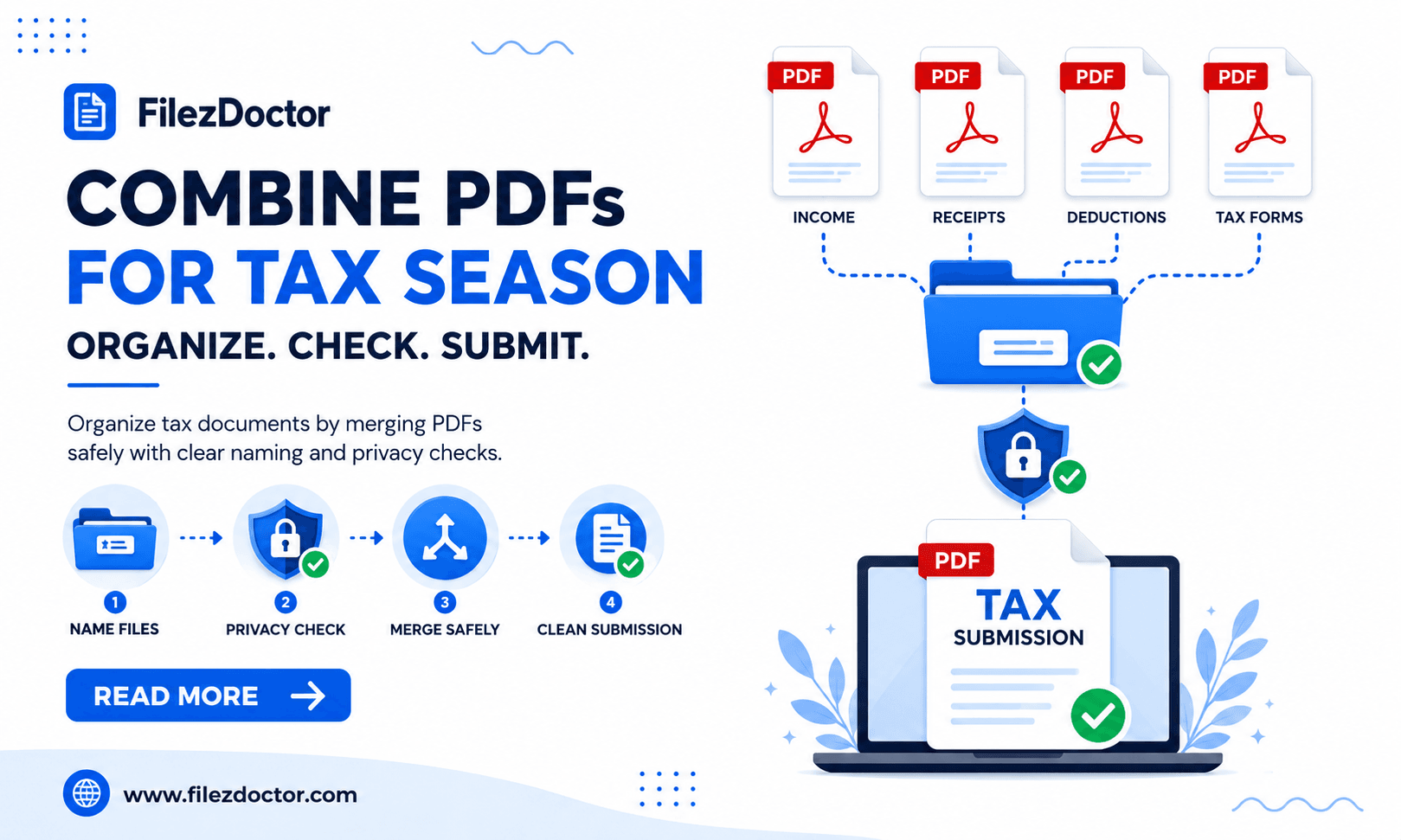
The goal is simple: create a single, clear set of PDFs that is easy to review and meets size requirements. This guide focuses on a reliable process for combining, naming, and validating tax PDFs. When you need to merge documents into one submission file, use the Merge PDF tool.
Why organizing matters more than you think
When tax documents are scattered across multiple files, it becomes harder for reviewers to:
- find the right page quickly
- verify totals and dates
- match documents to specific categories
A merged, well-ordered PDF package reduces back-and-forth and helps ensure nothing is overlooked.
A tax-season checklist before you merge
Before combining, take a minute to confirm:
- you have the latest versions of each document
- the PDFs open correctly
- scanned pages are readable
- sensitive information is handled responsibly
If you are combining PDFs that include personally identifiable information, plan to share through a secure workflow and limit distribution to the intended recipient.
Step-by-step workflow for merging tax PDFs
Step 1: Gather documents by category
A category-first approach makes merging easier and improves clarity. Common groupings include:
- income statements
- deductions and credits
- investment/interest statements
- retirement account statements
- property records
- identity and tax profile documents
Even if you ultimately merge everything into one file, sorting by category helps you choose the correct page order.
Step 2: Decide the final order of the merged PDF
Pick an order that matches how the recipient reviews documents. A common pattern:
- Summary or cover page (if you use one)
- Income-related statements
- Deductions and supporting receipts
- Account summaries
- Any additional notes or explanations
For dense uploads, consistent ordering saves time.
Step 3: Standardize filenames before merging
File names are not the same as PDF content, but clear names prevent version mistakes. Example names:
2026 - W-2.pdf2026 - Interest Statement.pdf2026 - Medical Receipts.pdf2026 - Donation Proof.pdf
Then when you upload/select them for merge, you can trust the order.
Step 4: Merge using a page-order reliable workflow
When merging PDFs, ensure:
- you are combining PDFs (not images or random file formats)
- you select them in the order you want the pages to appear
Use the Merge PDF tool to combine the documents into your final tax package.
Step 5: Validate the merged output
After merging:
- open the first and last pages
- scan the middle sections to confirm headings and boundaries
- check page count matches your expectations
This is also where you confirm that scanned pages did not end up rotated or duplicated.
Reduce file size if your submission portal has limits
Tax portals often impose file size limits, especially when you submit multiple attachments.
If your merged PDF is too large:
- avoid compressing each individual PDF separately (it can create inconsistent quality)
- instead, merge first and then compress the final package once
- verify that text remains readable at normal zoom levels
If your tax package contains many scans or photos (receipts), size is usually driven by image resolution. In that case, compress carefully and prioritize readability.
Privacy and security best practices
Tax documents include sensitive details. Even if your recipient is trusted, avoid accidental exposure.
Best practices include:
- share only with the intended person or secure portal
- prefer secure link-based sharing over public attachments
- apply password protection if your workflow requires it
- remove drafts or unrelated sensitive pages before merging
If you are using an internal or third-party tool, confirm the process aligns with your privacy needs.
Handling scanned receipts and image-based documents
Scanned receipts are common, but they can be difficult to search and verify.
If you need searchable text (or if your recipient relies on searching):
- consider OCR for scanned PDFs before merging
- then merge the updated, searchable versions
If you do not need searchable text, focus on making sure the scans are legible enough for visual review.
FAQ
Should I merge all tax PDFs into one file?
Only if the portal or accountant prefers it. When allowed, one organized file can reduce confusion and speed up review.
What if I have both scanned and text PDFs?
It is fine to merge them together. Just validate readability across the whole package, especially scanned pages.
How do I make sure nothing is missing after merging?
Check page count and review the first, middle, and last sections. If possible, compare against your original document list.
Can I compress the merged tax PDF?
Yes, compression can help with size limits. Keep quality in mind: zoom in on key text and make sure receipts or headings remain readable.
Final thoughts
Combining PDFs for tax season is mainly about organization, ordering, and validation. Sort by category, merge with a reliable page order workflow, and double-check the merged output for readability and completeness. With a repeatable process, your next tax season upload will be faster and less stressful.
Ready to optimize your PDFs?
Experience the world's fastest PDF tools today.