Best PDF Workflow for Job Applications
Job applications are high-stakes and low-tolerance for formatting issues. A resume that shifts margins, a missing page, or a file that exceeds a portal size limit can cost you time even when your experience is strong. The best approach is to follow a repeatable workflow that turns your source documents into one clean, submission-ready PDF.
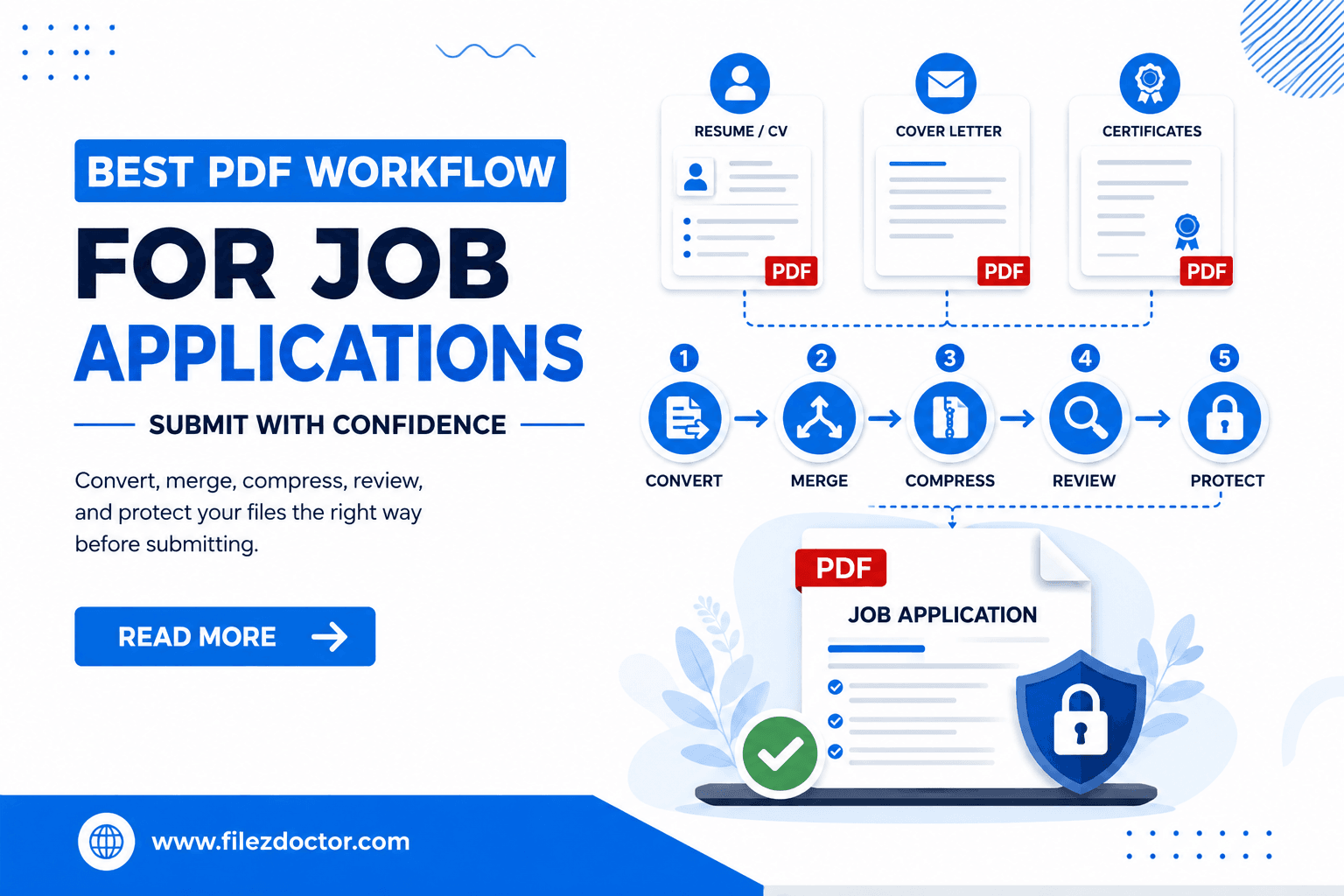
This guide focuses on practical steps: converting to the right formats, merging the documents in the correct order, compressing safely, and doing a final readability check. If you need to combine files into one submission PDF, use the Merge PDF tool.
Start with the correct source files
Before you export anything, gather the “building blocks” you will include:
- Resume (DOCX or editable source)
- Cover letter (DOCX or editable source)
- Optional: references, certifications, portfolio pages, or a skills matrix
If any section is a scan (for example, a stamped certificate), plan for OCR later so you do not end up with a final PDF that is only images.
Create a clean naming system
A confusing file name at any step can lead to the wrong version being uploaded. Pick a simple naming pattern and stick to it.
Examples:
Resume - Alex Chen.pdfCover Letter - Alex Chen.pdfPortfolio - Selected Work.pdfApplication - Alex Chen - 2026-07-16.pdf
Even if you only do this mentally, naming clarity reduces mistakes when you are merging multiple exports.
Step-by-step: build your final PDF
Step 1: Export each document with consistent page settings
When exporting to PDF from your source editor:
- Use consistent paper size (Letter vs A4).
- Match orientation (portrait vs landscape).
- Keep margins consistent if your resume uses a template.
If your cover letter is longer and includes different formatting, that is okay. The goal is to avoid unexpected scaling and borders.
Step 2: Merge in the correct order
Ordering matters for portals and reviewers. A common sequence is:
- Resume (cover page)
- Cover letter
- Supporting documents (certificates, references, portfolio pages)
Use the Merge PDF tool to combine your documents into one file. The tool-based workflow helps you:
- control ordering reliably
- ensure you are working with PDFs (not mixing images and DOCX files accidentally)
- download a single final submission file
Step 3: Verify page breaks and section boundaries
After merging:
- confirm page 1 is your resume (not a blank cover page)
- scan the middle quickly to catch cut-off headings or missing paragraphs
- confirm the last pages are exactly the attachments you intended
Most “looks wrong” problems show up in page transitions.
Step 4: Compress safely (only if you need to)
Some portals have file size limits. Compression can help, but aggressive settings can blur text or reduce diagram clarity.
Best practice:
- Only compress if your merged PDF is too large.
- Compress after merging, not before, so you validate the real submission file.
- Always zoom in on headings and small text to confirm they stay crisp.
If you notice readability loss, you may need less aggressive image optimization or no compression at all for text-heavy pages.
Step 5: Protect when required (optional)
Some employers ask for a password-protected document, while others request additional privacy. If you choose to protect your PDF:
- apply an open password
- decide whether printing/copy restrictions are needed
- verify that your own viewer prompts correctly
Then share the password separately from the file delivery.
Quality checks that take 2 minutes and save hours
Before submission, do these quick checks:
Readability
- Zoom to 100% and 150% on your resume headings.
- Check small-font details like dates, bullet spacing, and certification IDs.
Consistency
- Confirm typography and spacing do not jump between documents.
- If you used different sources, make sure section headers look consistent.
File integrity
- Open the final PDF on the device you will use to upload (or at least a second viewer).
- Ensure it opens without warnings or broken pages.
Handling scanned attachments (without ruining the final PDF)
If any supporting document is scanned:
- Improve scan readability (contrast and alignment if your workflow supports it).
- Convert it to searchable/editable text via OCR if you need searchable content.
- Then merge it into the final PDF.
This prevents your final submission from being “hard to search” even if it visually looks fine.
Common mistakes to avoid
- Merging DOCX files directly instead of exported PDFs (some tools treat them inconsistently).
- Compressing each section separately and then losing visual consistency.
- Forgetting to check the final merged file size before uploading.
- Not verifying the order after download (especially if you renamed files quickly).
FAQ
Should I submit one PDF or separate files?
When the portal allows it, one combined PDF is often easier for reviewers. Use one file unless the submission instructions clearly say otherwise.
What if my PDF is rejected due to size?
First compress the final merged file using a readability-friendly strategy. Then re-upload and re-check that small text still looks sharp.
How can I ensure the resume stays on top?
After export, place the resume first in the merge order and confirm page 1 in the merged preview.
Do I need to password-protect every application?
Only if a requirement specifies it or if your privacy needs justify it. Otherwise, password protection can add friction for the reviewer.
Final thoughts
A strong job application PDF is not just about content. It is also about reliable presentation. If you merge documents thoughtfully, compress only when needed, and do a quick final readability check, you can submit with confidence and avoid formatting surprises.
Ready to optimize your PDFs?
Experience the world's fastest PDF tools today.