Batch-Processing PDFs for Office Admins: A Workflow That Scales
Office administration often turns into a “paperwork pipeline.” One day you’re compressing attachments, the next you’re converting spreadsheets to PDF, and soon you need consistent rotation, metadata cleanup, and page-numbering across dozens of documents.
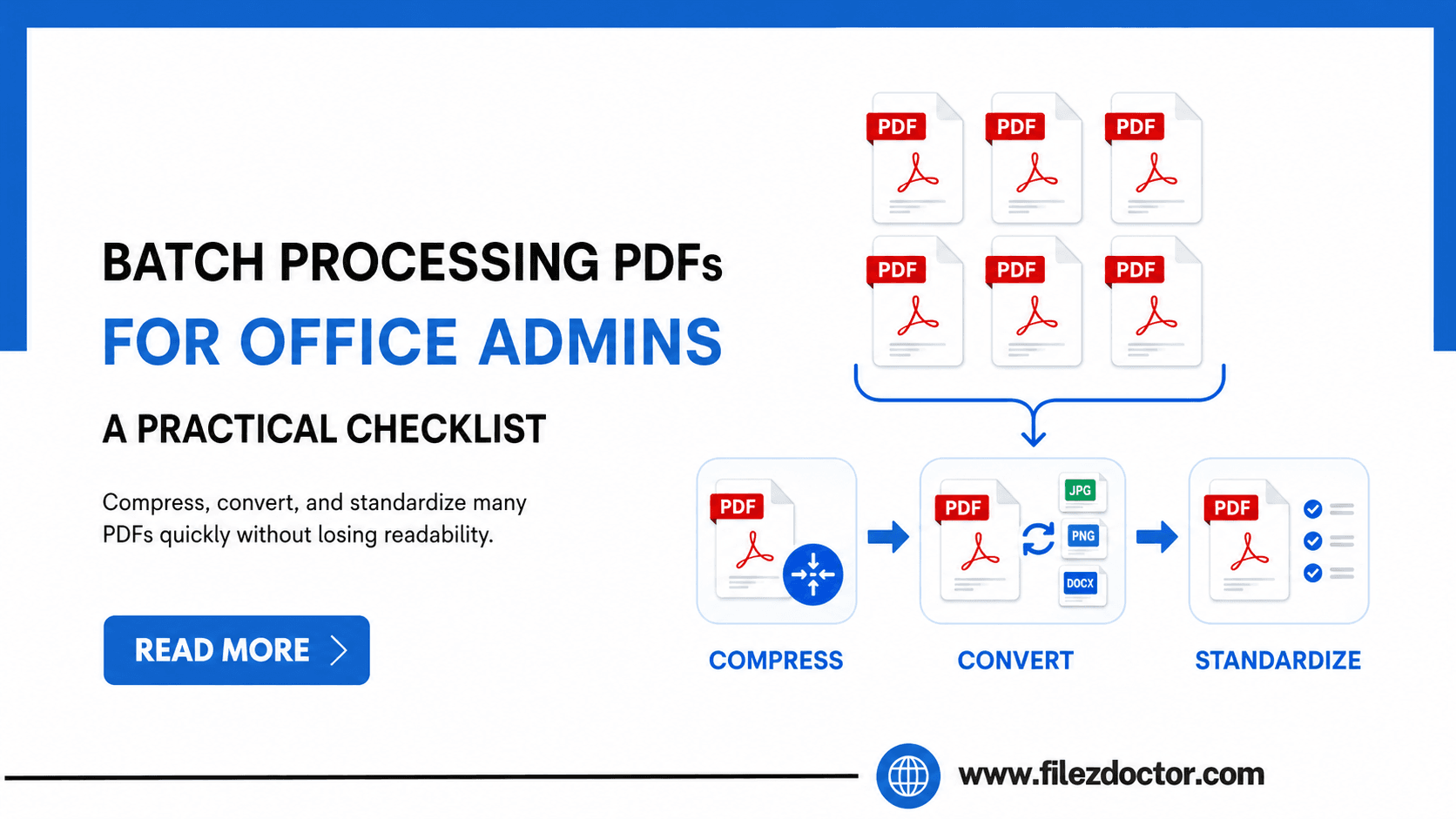
When the volume grows, you need a workflow that’s repeatable, easy to audit, and gentle on file quality. That’s exactly where batch processing helps.
For a streamlined approach, use Batch Process in FilezDoctor to apply the same transformation across many files.
What batch-processing should achieve
A good batch workflow isn’t just “faster.” It should also:
Keep results consistent
Every recipient and every archive entry should get the same formatting standard.
Preserve readability
Compression and conversions should not make text blurry or break tables.
Make review easier
You should be able to spot problems quickly without opening every file manually.
Reduce rework
The fewer times you need to redo the same task, the more predictable the operation becomes.
Step 1: Sort your documents by purpose
Before touching settings, classify PDFs into a few “types.” For office use, types often look like:
- invoices and receipts
- scanned forms
- reports with charts and tables
- internal documents that must be archived
- documents that will be shared externally
Batch settings work best when they match the document purpose. A scanned receipt needs different handling than a text-based contract.
Step 2: Standardize file naming and output folders
The biggest admin pain point in bulk work is losing track of what happened to which file. Use a consistent naming scheme such as:
YYYY-MM-DD_clientname_documenttype_v1.pdfYYYY-MM-DD_batchname_tool-processed.pdf
And create output folders by task:
out/compress-emailout/rotate-scansout/archiving-pdfa
This makes it easier to trace changes if someone asks, “Which version did we send?”
Step 3: Pick operations that can be applied safely in bulk
Some operations are naturally batch-friendly because they have predictable effects:
Compression for email delivery
Great for reducing oversized attachments when quality needs to remain readable.
Rotation correction for scanned pages
Helpful when you know a certain scanner/app produced rotated pages consistently.
Converting spreadsheets to PDFs
Common when office staff exports data weekly.
Metadata cleanup before sharing
Useful when you want to reduce the chance of leaking unnecessary internal details.
Your exact list depends on what your organization sends most often.
Step 4: Establish a quality-check routine
Batch processing can still produce errors if a few inputs are unusual. Add a lightweight checklist:
Sample review
- Open 1–3 files from each batch type.
- Check headings, body text, and table readability.
Spot checks for scanned PDFs
- Zoom to 100% and confirm text edges are clear.
- Confirm page order is correct.
Output sanity checks
- Verify file size is within expected limits (especially for email).
- Confirm downloads completed successfully and files are not corrupted.
This takes only minutes but prevents hour-long rework later.
Step 5: Use FilezDoctor batch processing
With Batch Process, a typical high-level workflow is:
- Upload or select the PDFs to process.
- Choose a transformation preset or configure the relevant steps.
- Start the batch job.
- Download the processed outputs.
Tip: If you handle a mix of document types, run separate batches instead of one “everything” run. This keeps quality consistent and avoids surprising results.
Common pitfalls for office-wide PDF batch work
Pitfall 1: One setting applied to every document type
Compression settings that work for text-based reports may ruin scanned forms. Match settings to document type.
Pitfall 2: Ignoring “final step” timing
If your process includes conversions and edits, run PDF/A conversion or rotation as the last formatting step whenever your policy requires it.
Pitfall 3: Not keeping originals
Always keep a copy of the unmodified source PDFs until you confirm that recipients and archives accept the processed versions.
Pitfall 4: Failing to manage version control
Without versioning, you can’t confidently answer “Which PDF did we send?” or “Which one meets the policy?”
Admin-friendly scheduling and logging
For recurring workflows (weekly invoices, monthly reports, quarterly archives), create a lightweight log:
- batch date and scope (how many files, what source folder),
- which preset or transformation you used,
- any exceptions (files that failed or required reprocessing),
- who approved the final outputs.
If you operate as a team, a log also helps new staff understand the “why” behind a preset choice and makes audits smoother. Finally, keep originals until after the output passes your first review cycle—once you trust the preset, you can adjust retention rules to match policy.
FAQ
Can I batch-process mixed PDFs from different sources?
You can, but it’s safer to batch by document type (scans vs. text vs. exports) to avoid quality problems.
How many files should I process in one batch?
Start with a smaller batch (for example, 10–20 files) to validate quality, then scale up once you know the preset is working.
Will batch processing reduce file quality?
If you use compression or raster adjustments, file size may drop at the cost of some fidelity. Choose quality settings that keep text readable for your audience.
What should I do if one file looks wrong?
Keep the originals, identify the outlier file(s), and re-run processing for that subset with adjusted settings.
Ready to optimize your PDFs?
Experience the world's fastest PDF tools today.